Greetings - I upgraded to the all-in-one version and I’m now receiving a bunch of errors from the “{CharacterName}_WrinkleAnimBlueprint” for all of my CC characters.
i had this too if i try to update an old project. i tryed to do a fresh project from cc4 to unreal i can`t get morph tagets to work. In cc4 everything is working, but in unreal its looking different and wrong / damaged
I’m seeing similar issues with the morph targets in CC5 going to 5.7.1. If I turn off use t0 as ref, it will import but the bones are all wrong. And if I turn off morphs and enable use t0 as ref, it imports correctly. But if both options are on, it will crash due to an invalid array index somewhere in the unreal fbx morph import code. Ended up going back to 5.6.1 and the old setup tool which works fine on the same character export.
Hi, kdn115
Is the error you mentioned appearing in the log? Could you share the log file with us for analysis? Many of the errors are expected and won’t cause issues, but we’d like to double-check.
Hi, Schellicon
Could you try it with a new Unreal project to see if the issue persists? If you still encounter the problem, could you share the FBX along with the corresponding JSON and texture folders for testing?
Hi, bsgrooms
We found that the crash was caused by disabling these three Interchange plugins combined with using morph targets + Use T0.
However, the main issue is why you need to enable ‘Use T0’. It shouldn’t be necessary to check that option, but because it’s not checked you’re getting incorrect bone results. Could you please provide the FBX along with the corresponding JSON and texture folders so we can test?
hmmm on character import it warned me to use T0 as Ref Pose as following the tutorial gave me an error that some bones like cc_base_1_toebasesharebone was missing from the bind pose. The engine suggested “please set the 'Use T0 as ref pose” option.
… hitting “Use T0 as reference pose crashes the import.” Trying the exact tutorial method again after rebooting my rig.
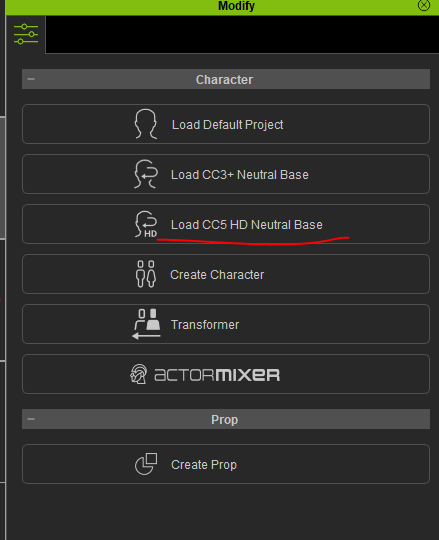
so it seems the main issue is the character I am using is a CC3+ character. On the plugin manual website it says that can result in the floating glitches I have been seeing. But following the tutorials to convert a CC3 character to a CC5 character doesn’t actually turn it into a CC5 character, and there is no button to do so in the modify panel other than loading a CC5 Neutral Base. It even has the CC5 Facial Profile. But when I try to use the All-in-One plugin, bone errors and floating.
It shows up in the console log as it prevents the project from compiling/running. I’ve already uninstalled the all-in-one and reverted to the previous version.
How to replicate:
Have an existing UE (5.6.1) project containing RL characters and the previous version of the UE auto setup
Upgrade the auto setup to the all in one version
Try to run your project and see it fail due to the WrinkleAnimBlueprint errors
I’ve done a little more testing with a clean project in CC5 and a new project in UE. It works ok as long as you don’t use InstaLOD. But if you use InstaLOD and tell it to keep the Original Character, the bones get messed up. If you use it but tell it to not keep the original character AND don’t import the LODs in Unreal, it imports but is missing a bunch of bones. But if you do try to import the LODs in unreal, it crashes inside the RL plugin.
That being said, it seems that not using the T0 as pose option causes all the IK bones to be missing from the imported mesh in all cases. Here’s a link to the exported mesh:
Hi, kdn115
Because this update reorganizes the folder structure, projects that contain characters with the old AutoSetup data will need to keep the old CC_Shader folder in place when upgrading to version 2.0.
So you can first copy the old CC_Shaders folder into the original Project > Content directory, then overwrite it with the new CC_Shaders folder. After reopening the project, the errors should be resolved.
The missing bind pose message can be ignored. We recommend disabling the Use T0 option when importing into Unreal.
A CC3+ character is nearly identical to a CC5 character; the major primary difference is in the Facial Profile.
By default, CC5 characters use the HD Profile, while CC3+ characters use the Extended Profile.
So there is no button to convert a CC3+ character to a CC5 character. However, in the Modify panel, you should see “CC5 HD Neutral Base.”
Thanks, we confirm that this was a defect and will try to fix it ASAP, but since the issue originates from iClone/CC itself, the scope of the fix will be relatively large.
Let me understand - you want me to reinstall the all in one, get the errors, close the project, overwrite the CC_shaders folder, then re-open the project?
No, you don’t need to reinstall. Just go to your Reallusion shared plugin folder—you should see both the older version and the all-in-one version.
Copy the older version into your project first, then copy the all-in-one version.
After that, open your UE project—it should work. If you have other projects you want to upgrade to the all-in-one version, simply copy it into the project; there’s no need to delete the older version.
Never mind - did a developer window on the browser and altered the link to the old one. I’m now getting the following error/warning when opening the project:
While trying to load package /Game/CC_Shaders/EyelashShader/Textures/T_lacrimal_h, a dependent package /Game/MetaHumans/Common/Face/Textures/T_lacrimal_n was not available. Additional explanatory information follows:
FPackageName: Skipped package /Game/MetaHumans/Common/Face/Textures/T_lacrimal_n has a valid, mounted, mount point but does not exist either on disk or in iostore. The uncooked file would be expected on disk at ‘G:/UnrealProjects/{myproject}/Content/MetaHumans/Common/Face/Textures/T_lacrimal_n’. Perhaps it has been deleted or was not synced?