Hi everyone!
When working with generative AI pipelines, bad inputs mean wasted time and worse, wasted compute credits. To help you get the cleanest results on your very first try, we have compiled a targeted FAQ focusing on Credit Efficiency & Preventing AI Glitches.
Read below to learn how to properly align your 3D scenes with the AI tools, avoid prompt hallucinations, and stop wasting credits on failed renders!
Q1: Is there a core ground rule I should keep in mind while prompting in AI Studios?
- Answer: The absolute golden rule of prompting here is to avoid conflicting concepts. Selecting contradictory instructions confuses the AI model and leads to highly unpredictable visual results.
Watch Out for Conflicting Presets: Active prompt presets like choosing both “Medium Shot” and “Close-Up” within the same generation will completely conflict. Always ensure your selected parameters are mutually compatible before hitting generate.
 Crucial Tip for Project Iteration: When you are modifying text prompts or tweaking settings on an existing project layer, always double-check your active preset categories before rendering again. It is incredibly easy to leave an old preset toggled on by accident, which can result in failed generations and completely avoidable credit waste.

▲ Expand Presets to check for hidden text. Here, the inspiration preset contains hidden text for “Soft natural daylight”, directly conflicting with the “[light: Blue Hour]” lighting preset. Always remove opposing modifiers like this to prevent failed generations.
Q2: Why are appearance prompts required if a visual character sheet has already been provided in the AI Actor Creator?
- Answer: Apperance prompts act as the baseline instructions for the AI actors, working hand-in-hand with your character sheet to maintain strong visual consistency. While a single-sentence description works, providing more detail reduces the risk of unexpected AI artifacts or hallucinations. Think of it as fully optimizing the dataset for your character.
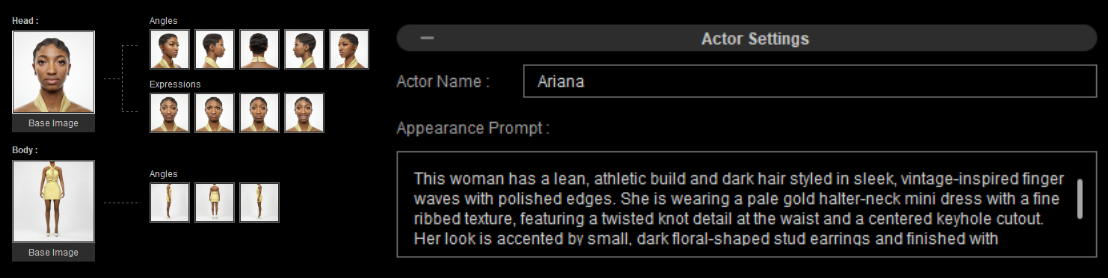
▲ Left: The visual character sheet | Right: The appearance prompt. Both components work hand-in-hand to define the baseline dataset for your AI Actor, combining precise reference imagery with detailed textual context to tightly maintain character consistency.
Q3: In 3D-guided image generation, when I assign an AI Actor to a 3D character, does it matter if their appearances don’t match?
- Answer: Yes, it matters significantly. The 3D character in your scene acts as the structural blueprint for the AI. If you assign an AI Actor to a 3D character that looks completely different, the AI model will get confused trying to reconcile two vastly distinct datasets, resulting in unexpected visual glitches or broken anatomy.
Best Practices:
- Match the AI Actor with the specific 3D character it was originally trained on/created with.
- Alternatively, use a neutral, white dummy mannequin model in your 3D scene so the AI only reads basic structural forms rather than conflicting textures.
(Note: For example, pairing a female AI Actor with a male 3D character, or an alien AI Actor with a human 3D mesh, will likely cause the AI to hallucinate and produce unexpected results).
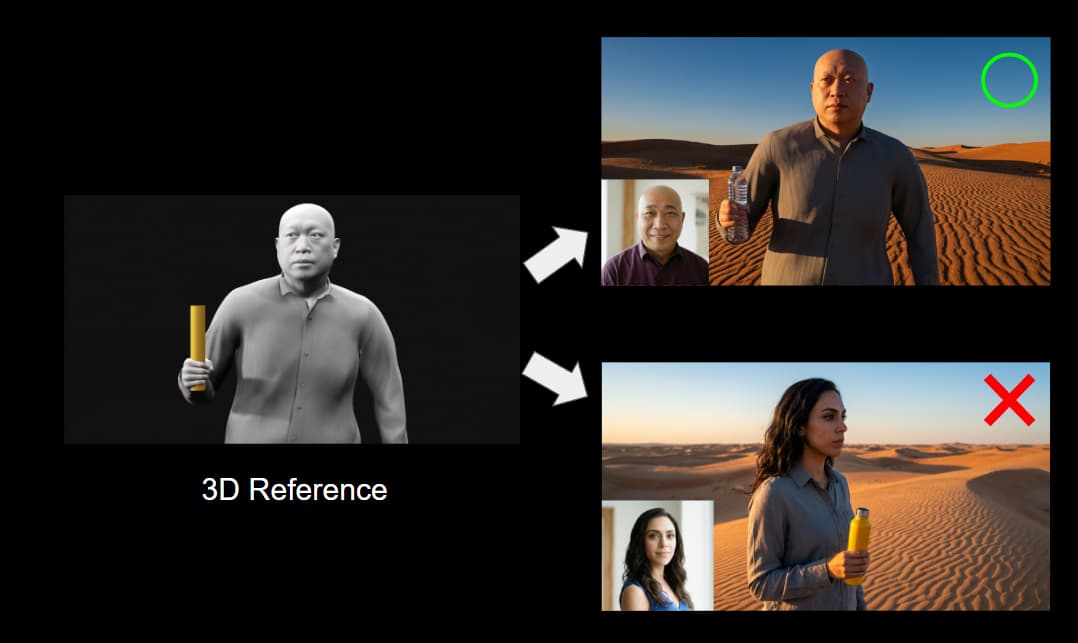
▲ Matching a female AI Actor with a male 3D character confuses the AI model, resulting in a random generation that completely ignores the 3D scene reference.
Q4: Why must I generate a first-frame image for 3D-guided video generation instead of using the captured viewport video directly?
- Answer: The system enforces an image-first workflow to act as a financial and creative safety net. Generating a single image allows you to lock in and review the exact visual style, character look, and environmental aesthetics before committing to the video generation process, which consumes significantly more compute power and credits.
Why it matters: Without this intermediate step, you would have to run costly, full video renders just to test basic aesthetics and see if the AI interpreted your prompt correctly.
