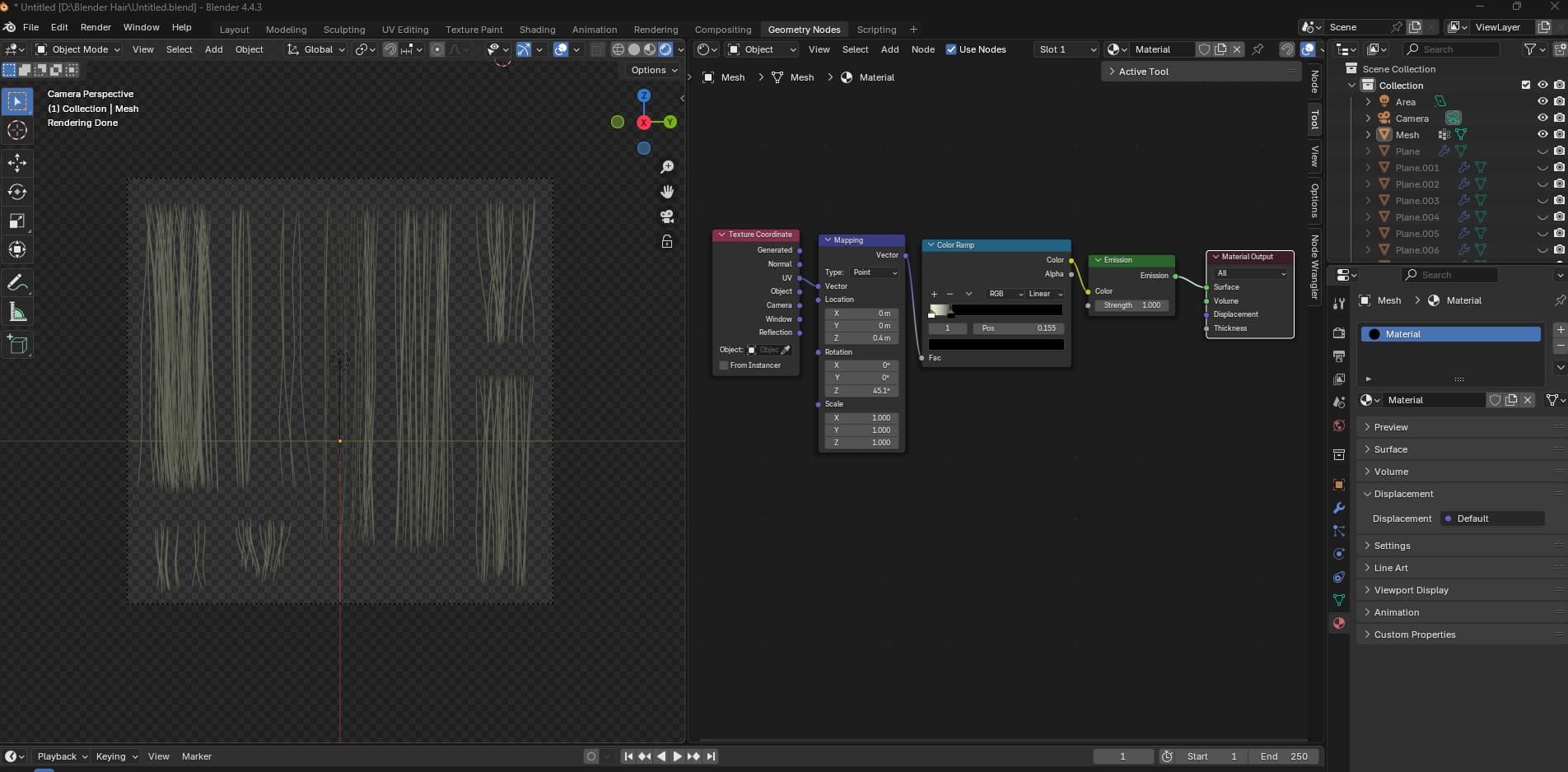
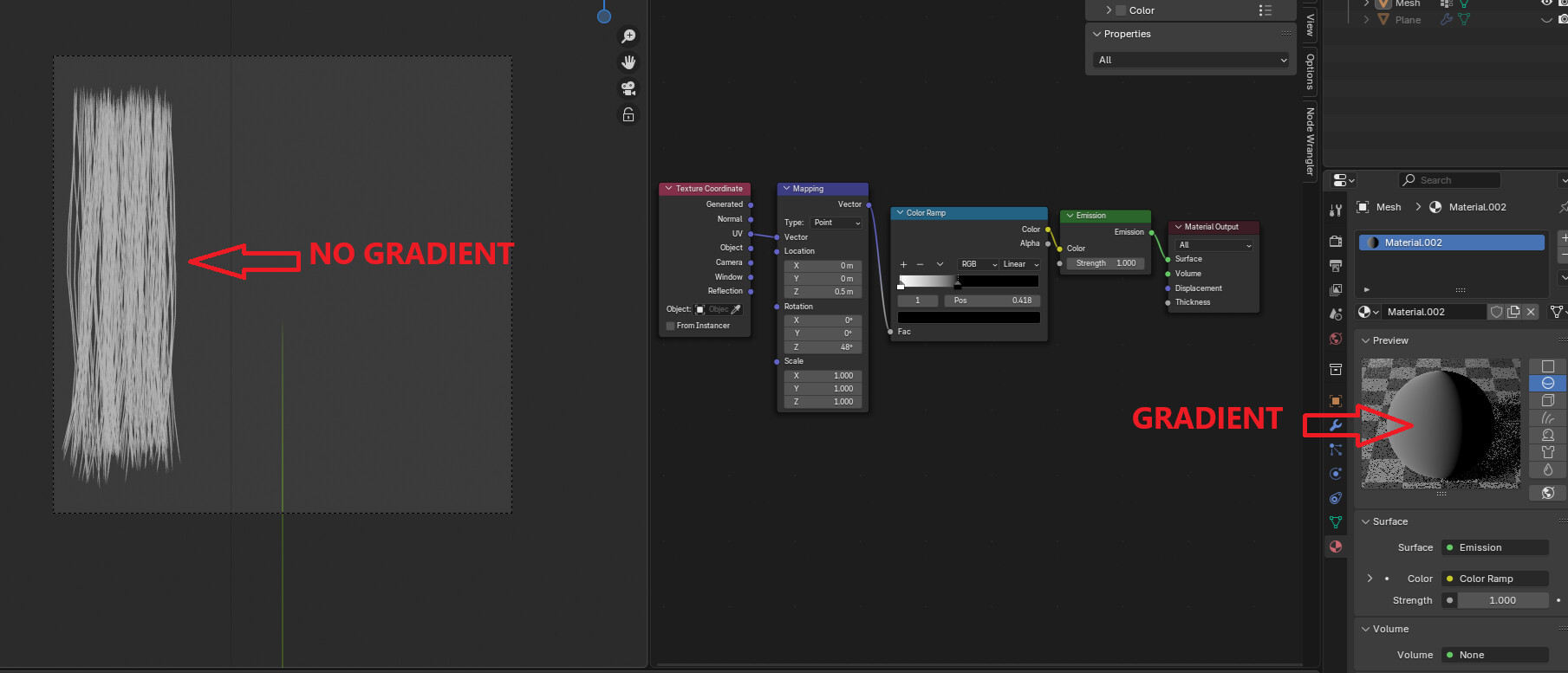
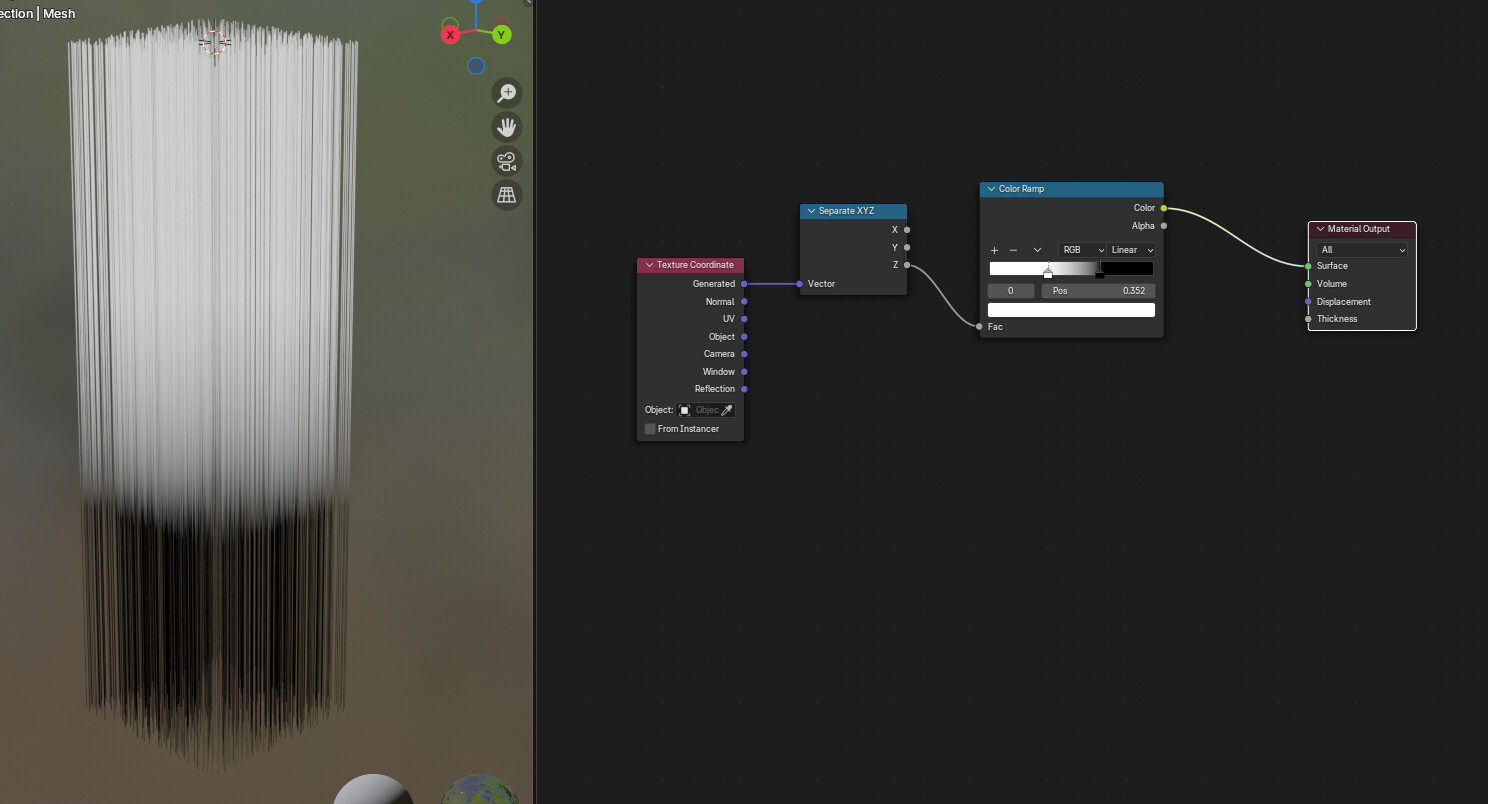
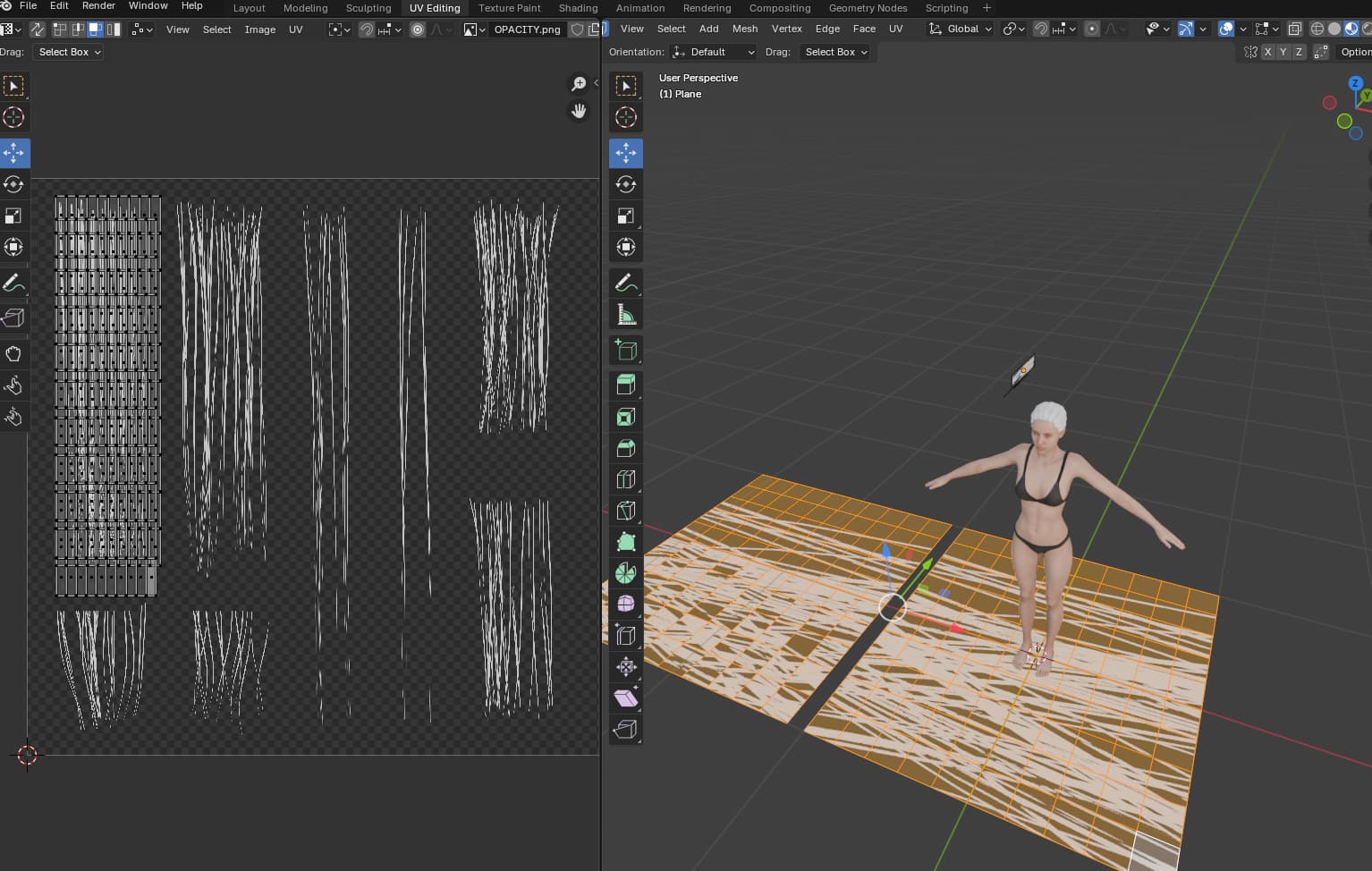
Hello. I’m trying to make smart hair according to the Reallusion tutorial, but I have a problem with creating a root map. I created nodes as in the tutorial, but the gradient on the hair does not appear in the viewport. When I drag the color ramp slider, the hair completely changes color. Can anyone help me?
My
How it should be.
I’m thinking it might be a Z-axis issue in the Mapping Rotation. Maybe try tweaking a few values and see if that does anything?
If it’s still not working, would you mind sharing a short video of your setup or the files you’re using? That might help us figure out what’s going on.
Regarding Z-axis advice, nothing has changed.
What did you mean by setup and files?
And another screenshot
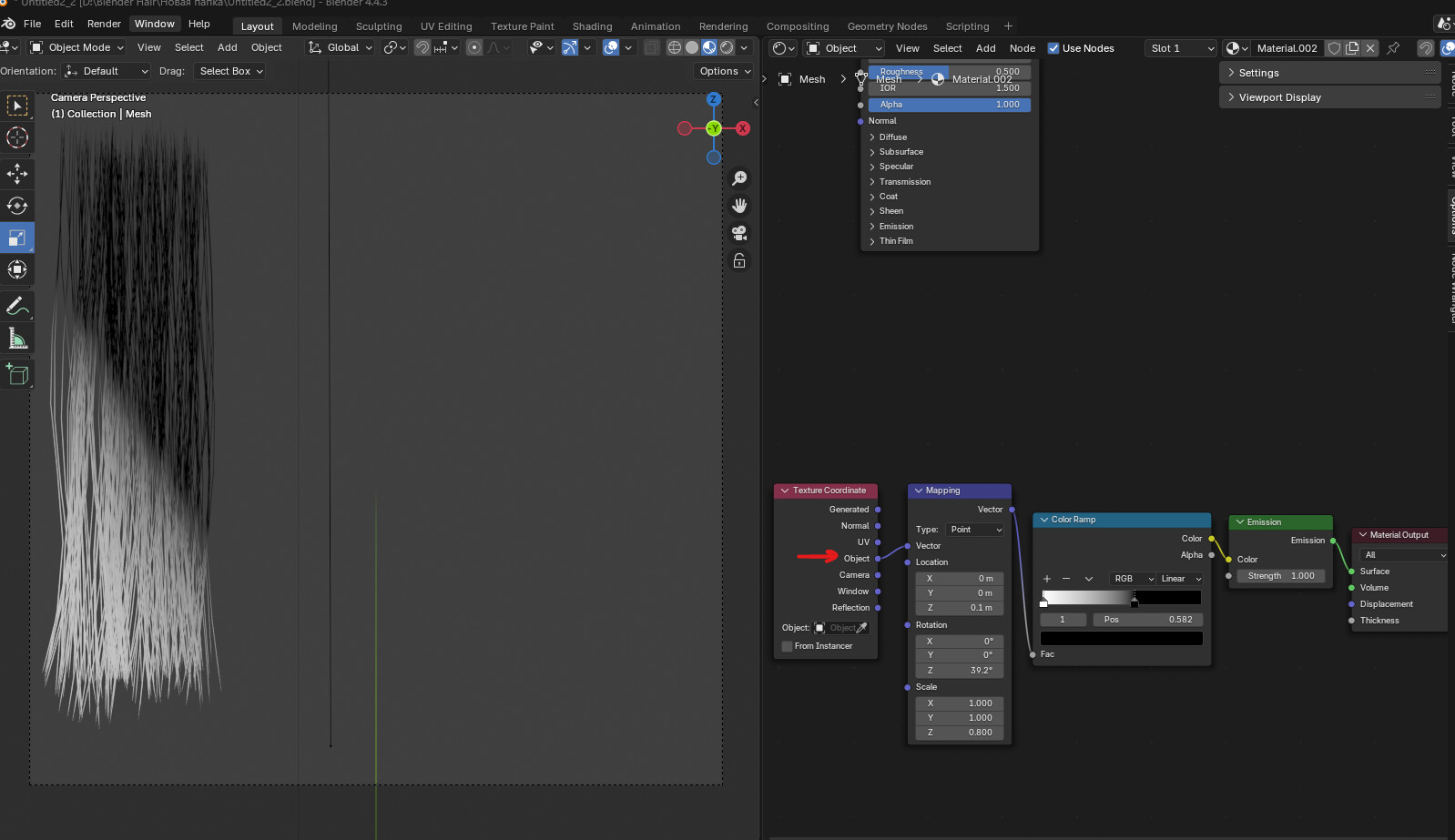
I changed the output from UV to Object in the “texture coordinate” node and the gradient started to display. But I can’t catch the angle yet, so maybe I’ll ask a question here…
But the tutorial shows exactly UV…
Assuming you were following this video:
It looks like there’s a step missing from that video. The method shown does not generate UV maps, so using UV coords in the shader isn’t going to work.
To make the process in the video work,
Immediately after converting the particle generator to a mesh, but before applying the modifiers :
- Select the converted hair mesh
- Go to Object Data > UV maps and add a UV map.

- Then proceed with the modifiers and it will generate the correct UV maps now.
Or
You can probably make what you have work by using Generated coordinates like this:
1 Like
Thank you, I’ll try your advice too))
Another problem.
My hair is more faded than in the tutorial…
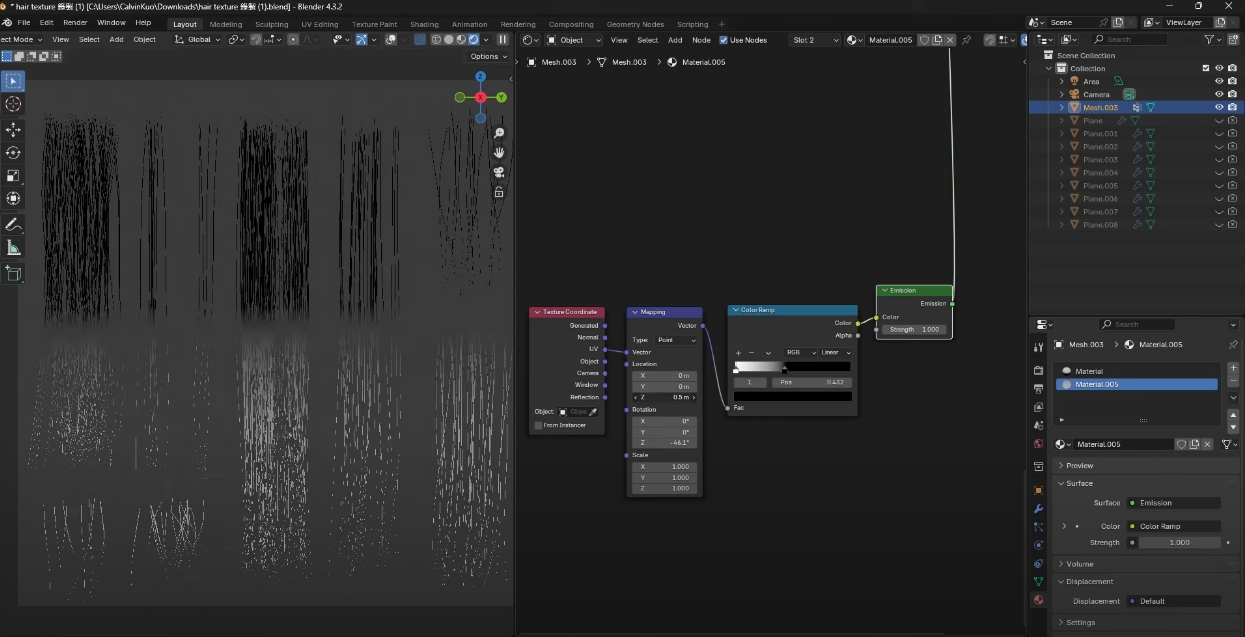
Tutorial:
And what is the lecturer doing here? He doesn’t say how and what tools he uses.
The one from the tutorial just looks like it has a thicker mesh.
At the point where you add the solidfy modifier you can control the thickness of the strands.
You want the strands thick enough so that they are each at least a few pixels wide. Otherwise the anti-aliasing will make everything too transparent.
And he’s using the UV editor, you need to be in edit mode on the mesh and have everything selected, then it all shows up in the UV editor.
Thank you! I’ll try changing the thickness.
As for the UV editor, I’ll check, maybe I’ll need help again 
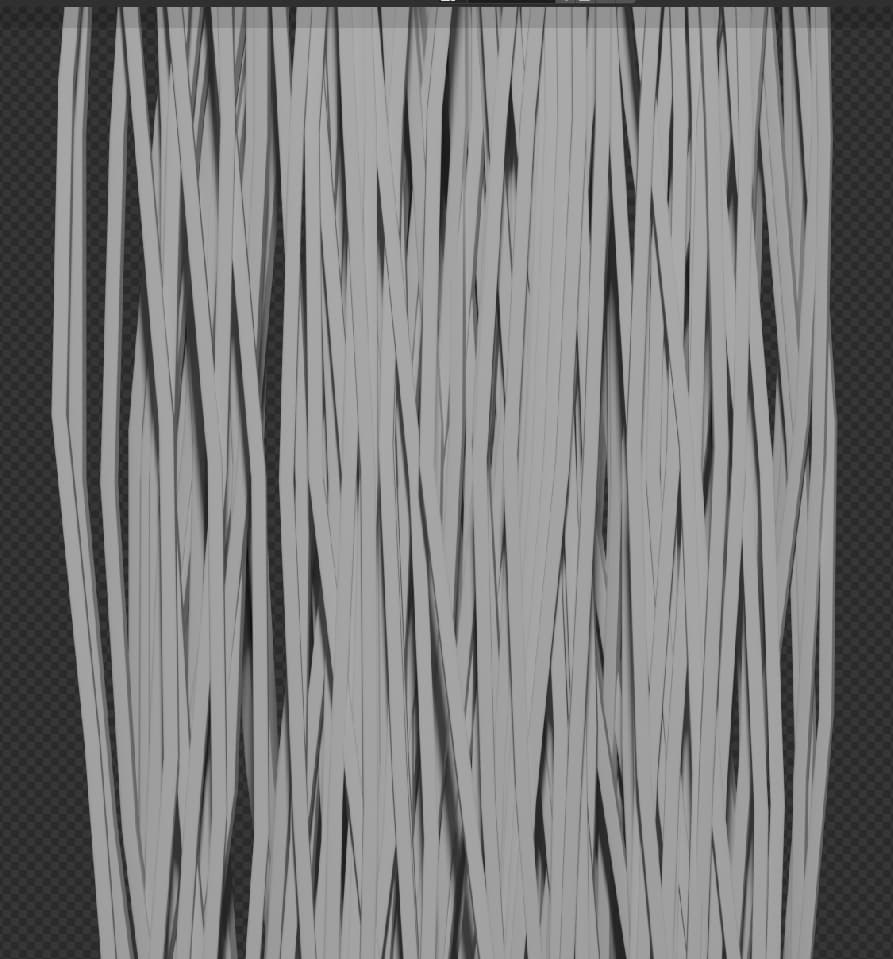
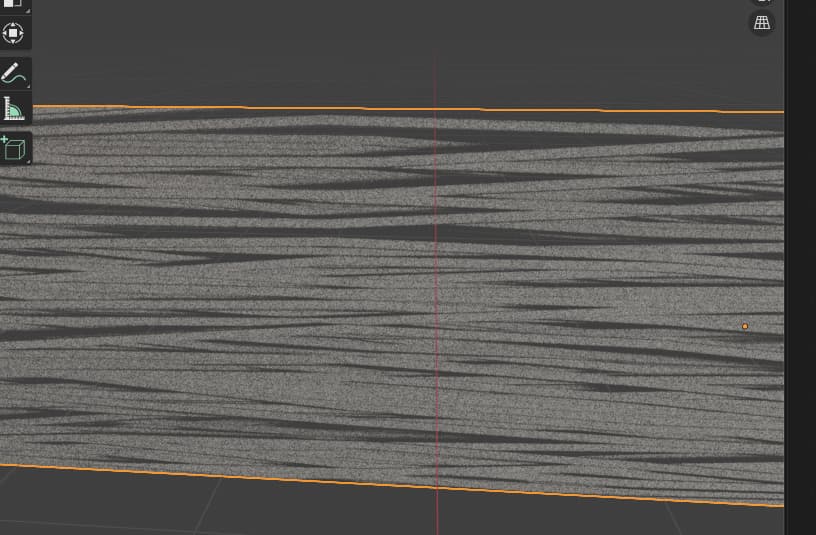
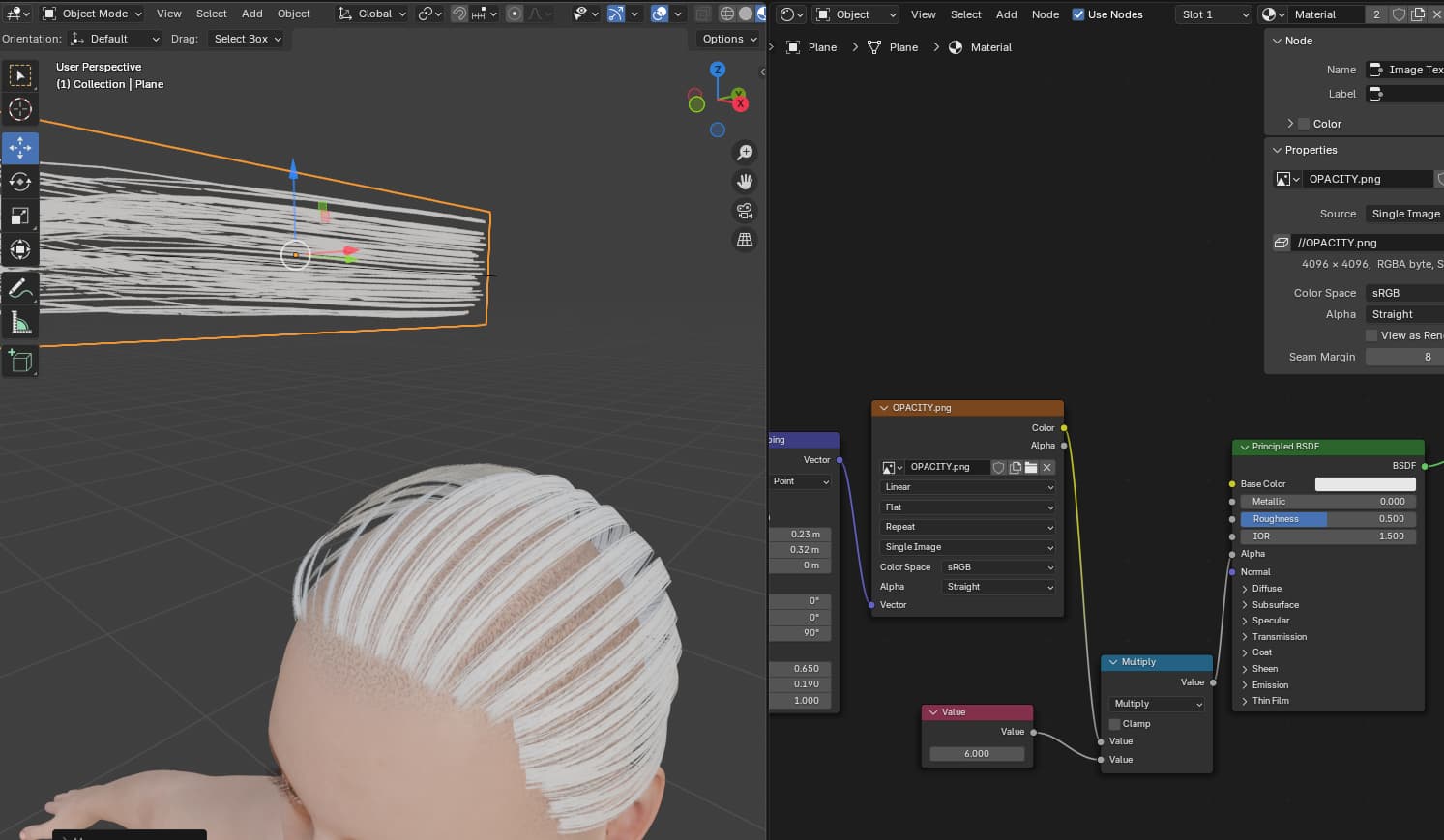
I don’t know, but the hair in rendered map seems normal. But when I apply it on plane, it turns out translucent with noise.
Rendered
On Plane
The noise is just sampling noise in the opacity, but, the solid parts of the texture shouldn’t be semi transparent like that, which means the material you used on the alpha bake wasn’t bright enough.
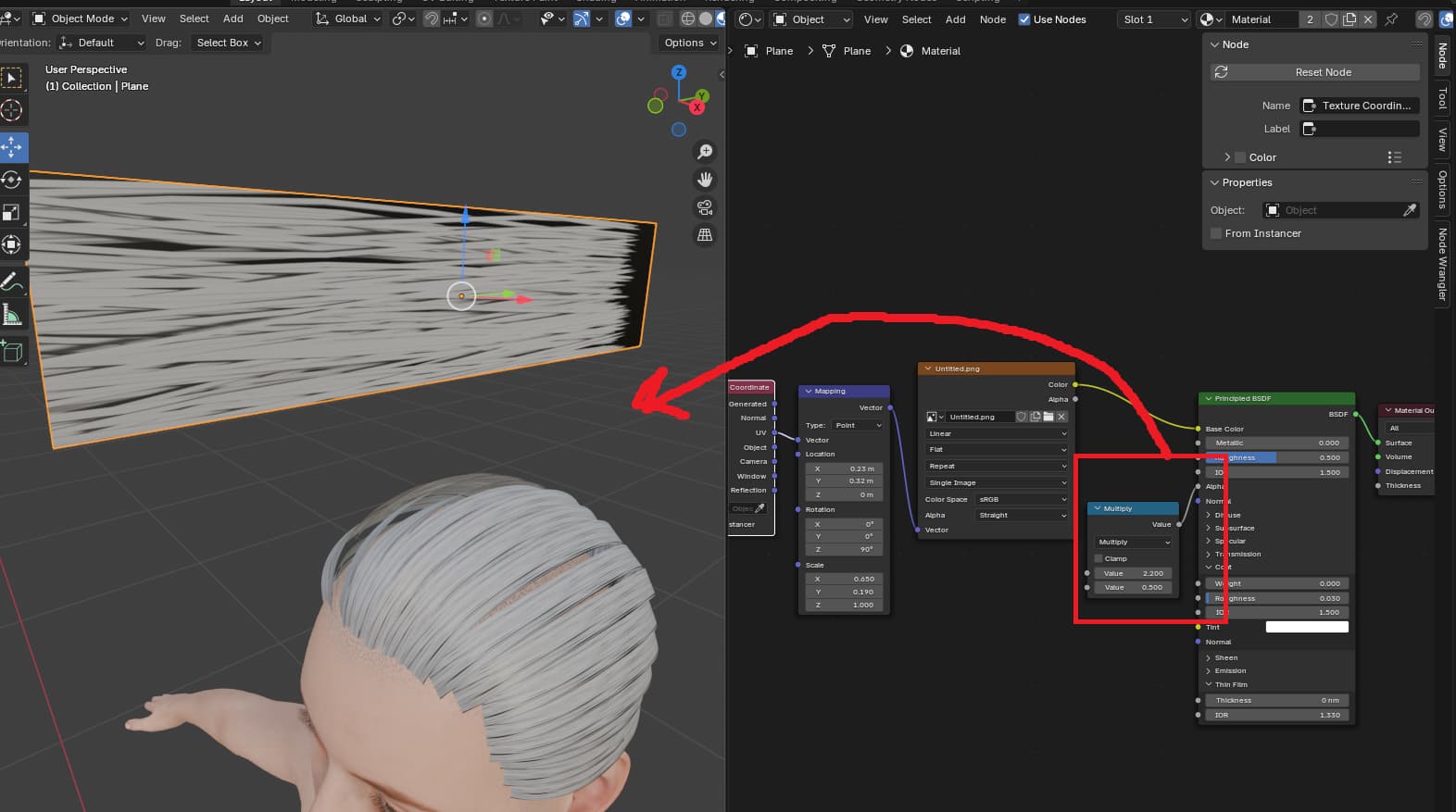
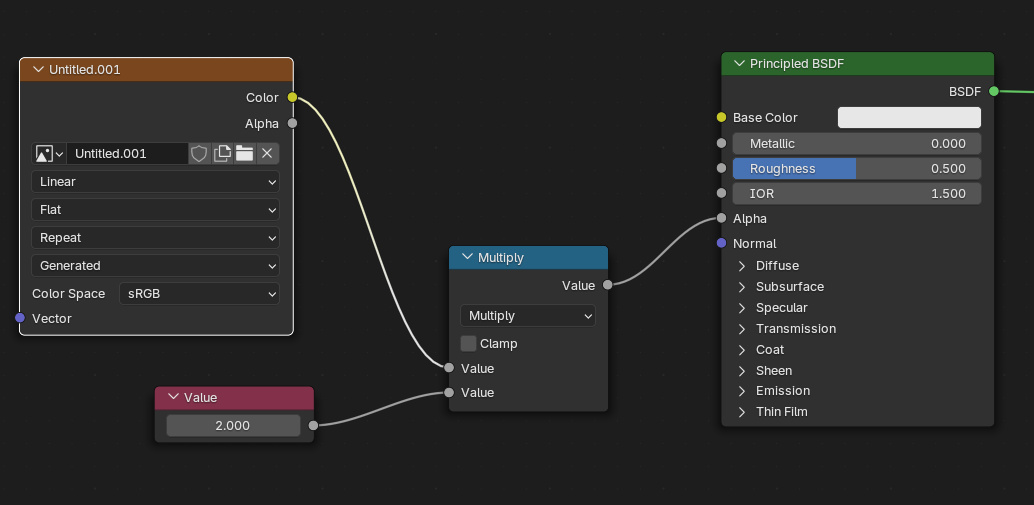
Or you could just put a multiply node on the output of the alpha texture and control the opacity with that.
Is this what you’re talking about?
It’s an opacity texture so plug the color output of the texture into the multiply node to scale the alpha up and down and the output of the multiply node into the alpha socket. You could also add a value node for the multiplier for clarity:
Then you can control the opacity with the Value node.
Thanks, it seems to have worked)))
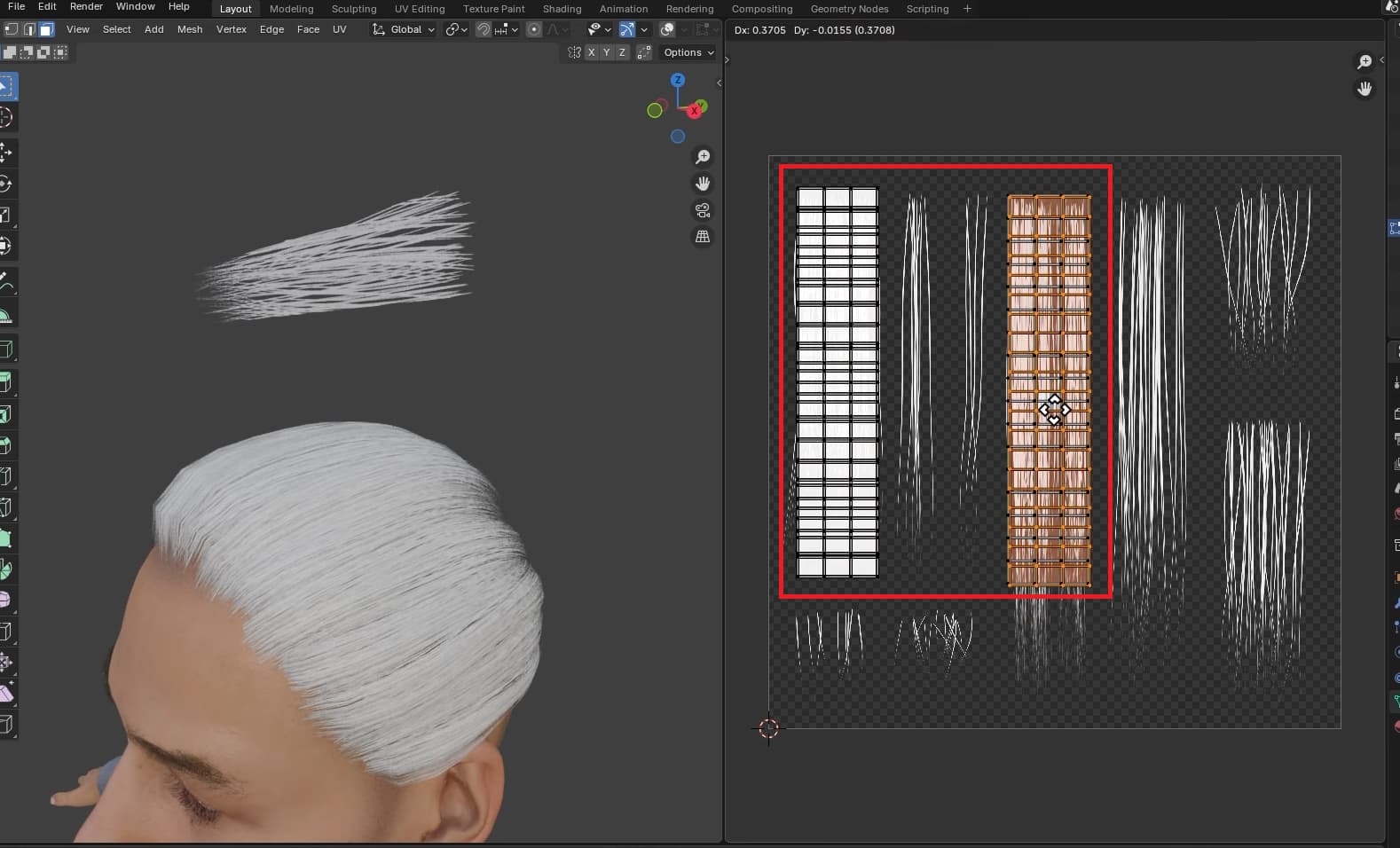
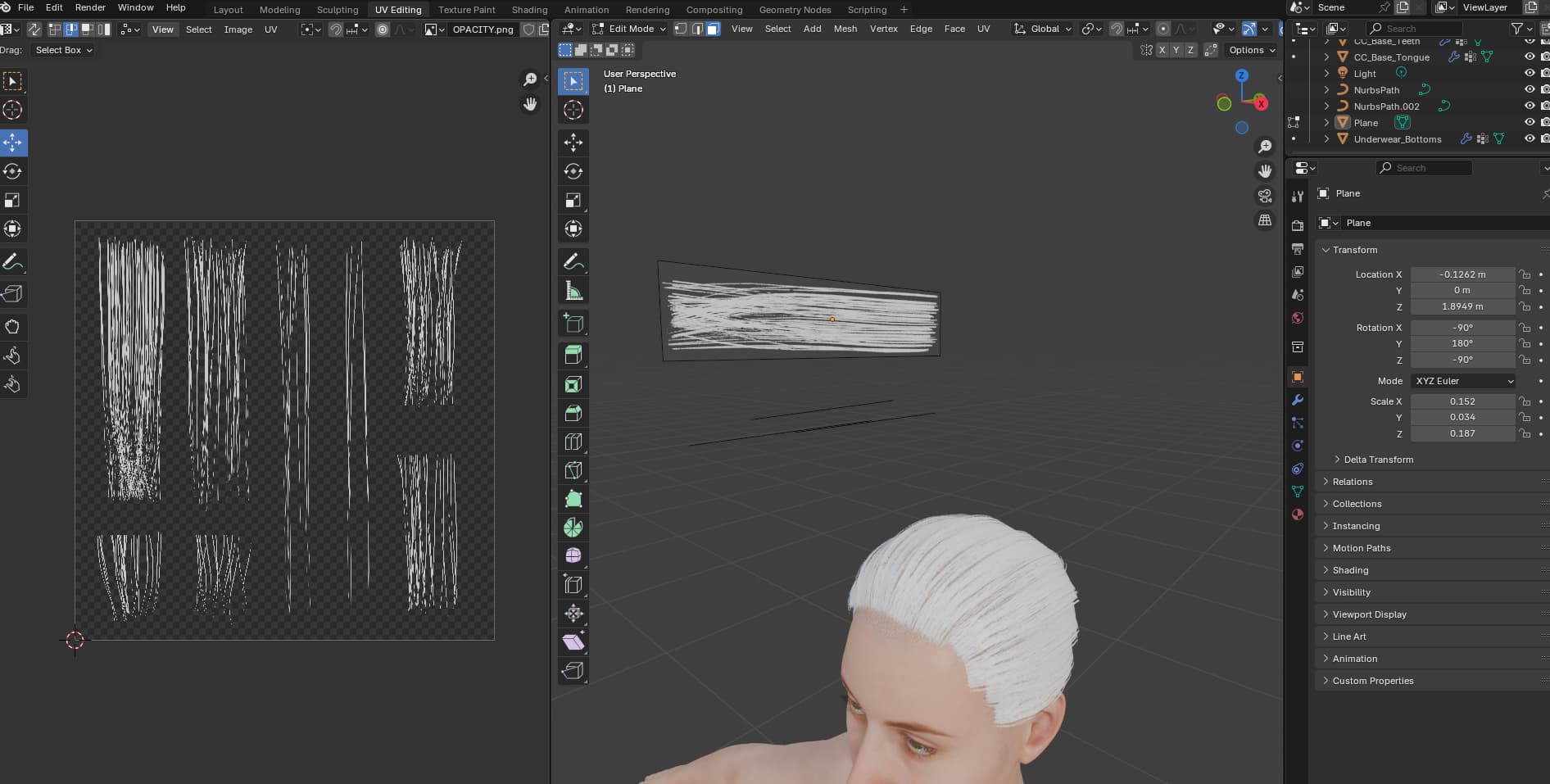
Excuse me, if it’s not too much trouble, could you explain what the lecturer is doing here in more detail? What kind of cells is he stretching on the hair map and how do I get them? And how do I save the result?
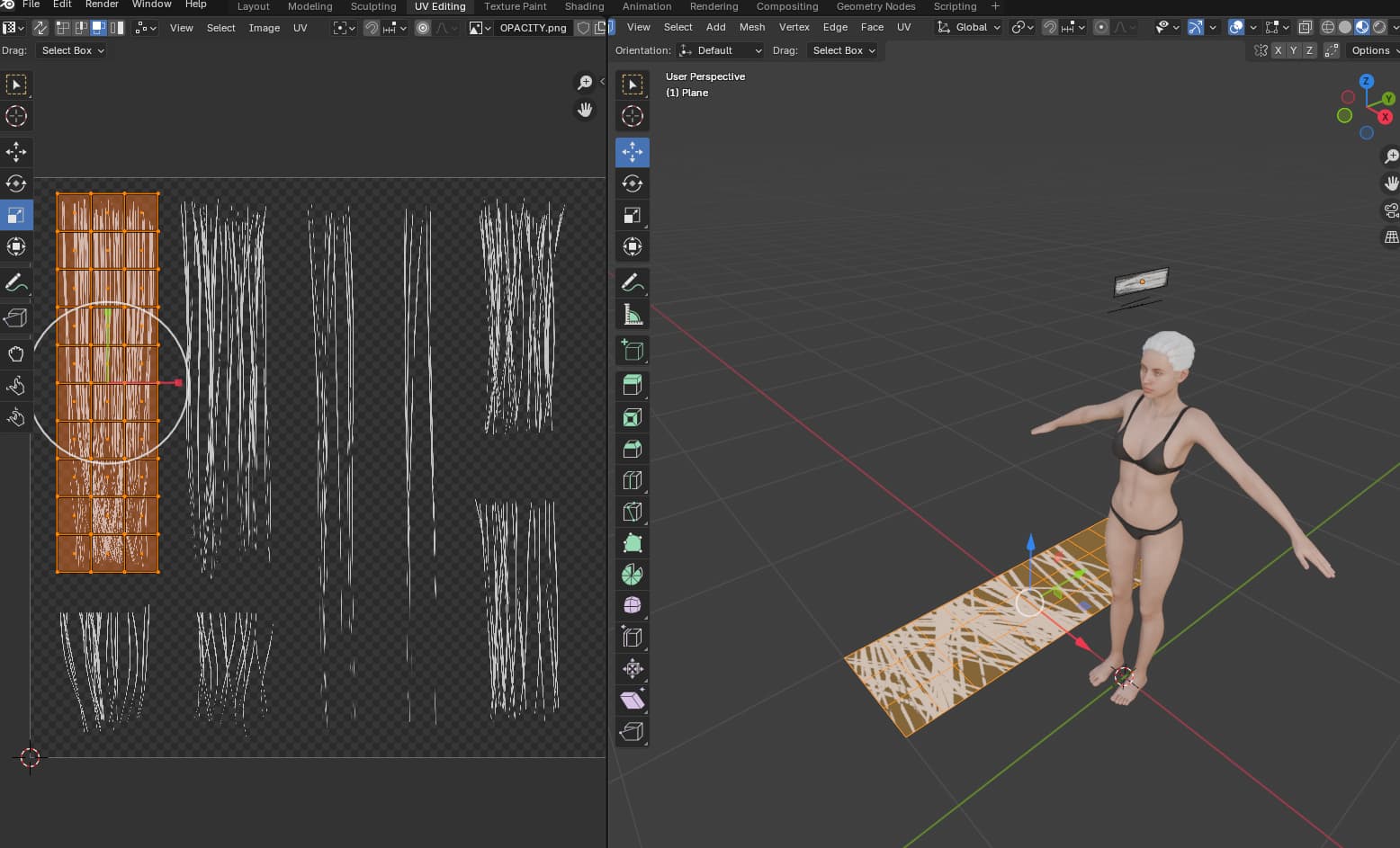
Its the UV editor. He’s stretching the UV islands around the hair strand groups in the texture map.
I’m stuck on UV editor…
I activated the editor.
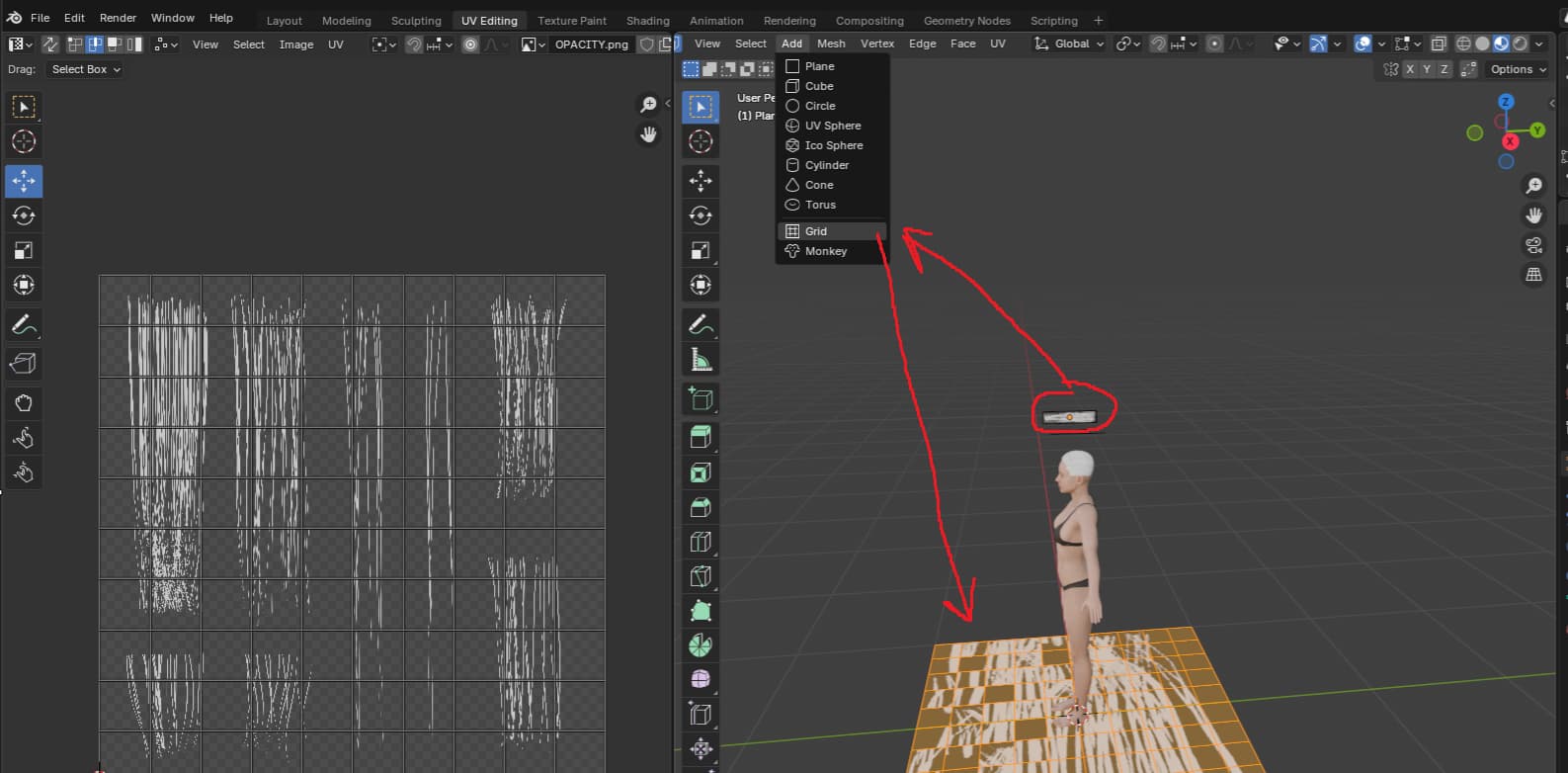
Then I selected the plane and pressed add grid. At the bottom and on the hair map a plane divided into many parts appears. But I don’t know whether I need to rotate this new plane or what else to do with it… The tutorial doesn’t show the floor and doesn’t show whether there is this divided plane…
Then I reduced the size of this plane on the hair map, added a second plane and combined them on the hair map.
Or I would first delete part of the plane, then add a second one and delete part of it.
I don’t know if I’m doing it right and how the result is saved before the next step in the tutorial?..
It’s the UV’s on the hair mesh you need to manipulate. That plane was just for baking the textures, you can ignore it now.
Sorry for the stupid questions, I’m just a newbie…
That is, when I create a grid plane on the right, I don’t do anything with it, but work only on the left part?
I didn’t quite understand, did the lecturer cut the plane on the hair or just compress the blocks, so that it seems that they are not there? And do I need to apply this plane to all hair types on the left or only to the ones used?
And when I place the planes as needed, I don’t need to save anything, just move on to the next step?
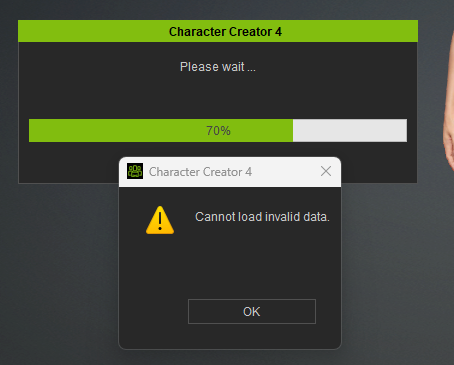
I tried to save and import the FBX file into CC4 as shown in the tutorial, but an error appears…
If an error occurs, a dmp file should be generated. However, to inspect the error details inside the dmp file, you’ll need to submit a repair ticket through the Feedback Tracker.