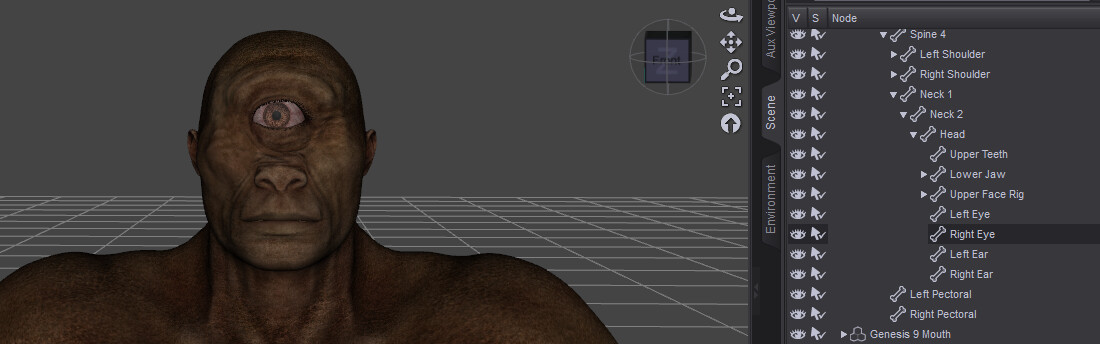
Yet, this anubis is working well (apart from the fact that DAZ won’t export the fur, but it’s another problem^^)
The Anubis is from the same author as the others (except the skeleton), also has some mesh deformations, but it exports well to CC5.
I was expecting to be able to use my collection of DAZ monster humanoids with CC5 but it seems it won’t be the case
Yet they are all G9 and seem to have standard DAZ skeletons.
What makes a G9 figure suitable or not for the DAZ → CC5 pipeline ? Where should i look to see the difference between the Anubis and the others in regards to this pipeline ?
At this time, characters went through Merge Mesh in Daz wasn’t supported in CC.
That was the case for Bronto(a mesh to fill empty eyehole) and Tor(horns).
You may try separating parts that was merged as accessories, but we’re still testing this method.
I’ll let you know if there’s any update!
We’ve found a workaround for importing DAZ characters with custom parts like the Minotaur head.
The reason this issue happens is because these specific parts are what DAZ calls “Geografts.” Since Geografts actually alter the base mesh of the character, our Transformer tool doesn’t recognize them during a standard import. Here is a step-by-step workflow to get around this:
In DAZ, drag the Geograft object out of the character’s parent hierarchy.
Delete the Geograft object, then export the character as an FBX using the standard Transformer workflow.
“Undo” your action to bring the Geograft back. Next, delete the character so only the Geograft remains, and export it as an FBX.
In Character Creator, import the Character FBX using the Transformer tool.
Drag and drop the Geograft FBX directly into the CC Viewport and choose to load it as a “Prop”.
Finally, adjust the Geograft to the correct position, and use the “Attach” function to link it to the corresponding bone on the character’s body.
*Note that for Bronto, the geograft part is a significant portion of his face, and it wouldn’t move with facial expression as prop.