I’ve read some existing post but cannot find a solution to sync files from another computer.
I’ve been trying to sync my existing Reallusion assets (templates, custom folders, etc.) from my desktop to my laptop for iClone and Character Creator. I copied the asset folders from my desktop and placed them in the Reallusion folder on my laptop (same folder path). However, the software still prompts me to download all the purchased packs again.
Is there a way to sync or transfer the files I’ve already downloaded without having to download everything again?
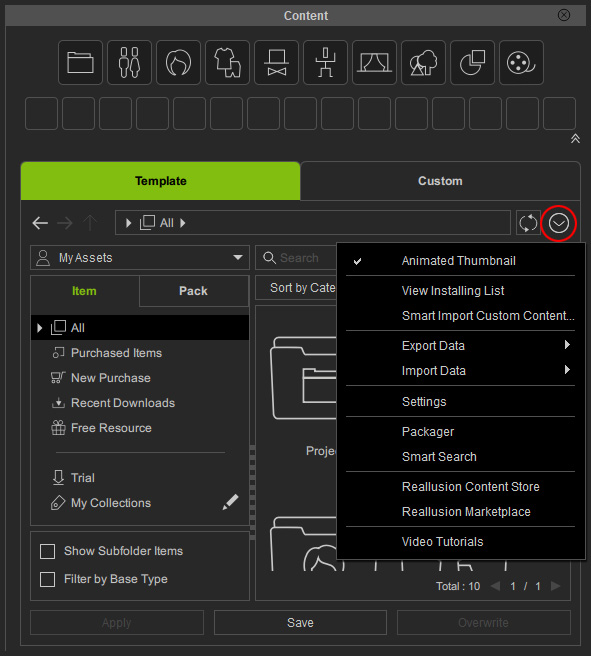
Do check in your Content Manager > Settings (see below) that your content folders are set to where the content is actually stored on your laptop.
If everything is set correctly, then you shouldn’t need to actually download the content again, but you may need to click each greyed out thumbnail again to activate it. This should be a very quick process if the content is already present.
Note: Your Custom content should just show up automatically in Content Manager if the folders are set correctly in Settings.
Thank you for your quick reply I followed your instructions, and it looks like I do need to click on each item to reactivate them, but it doesn’t seem to redownload anything, which is great. That’s such a time saver!
The custom items syncs beautifully. Thank you again for your help.
 I followed your instructions, and it looks like I do need to click on each item to reactivate them, but it doesn’t seem to redownload anything, which is great. That’s such a time saver!