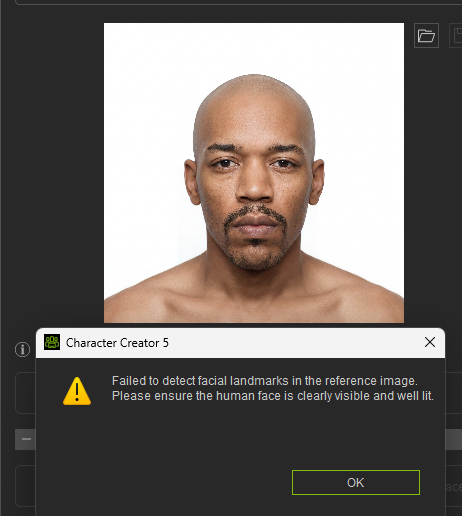
I am using an image that is pretty clear and enhanced with the built in image enhancer, but every time I get the error message Failed to detect facial landmarks in the reference image, Headshot 2 have no problem creating a character with that exact same image.
Hii, i have the same issue as yours. Umm can i ask did you fix the problem? If you did, can i know how to solve it???
Short answer. No.
May I ask you to please open a support ticket about this. Support has been working pretty hard in trying to solve it. I have been sharing logs and files and comments and frustration with them since I posted this, but it is difficult for them to identify the issue, if you can help and share your experience they will have more facts and data to work on,
Hello,
We have identified that this issue occurs when the Windows username contains non-English characters. We will release a patch for this in a few days. In the meantime, the current workaround is to create a new Windows user account with an English name.
We apologize for the inconvenience and thank you for your reports, which helped us resolve this.
Edward
This does seem to solve it! Thank you., I is a bit if a PITA workaround, but it works. Will await the patch to fix it.
Best
I have submitted this error almost 2 months back. Reallusion have identified the cause (windows user account contains non English characters). Reallusion have promised the fix by And of May. Reallusion have done 2 updates on headshot 3 since the issue was reported. Still the problem is not fixed. The workaround works, but is very irritating and inconvenient. Please give us an update on when it will be fixed. (Ticket 270440)
Hi…
I’m sorry to hear the issue is still happening. Please do accept our apologies for the inconvenience caused by this issue.
If you have an existing support ticket regarding this, please get back in touch with Support and ask for an update. They should be able to give you a timeframe for a permanent fix, or may even have a temporary hotfix for the problem.
Hi,
Thank you for reporting this issue.
To help us investigate the problem further, could you please provide the following information?
- Which versions of CC5 and HeadShot3 are you using?
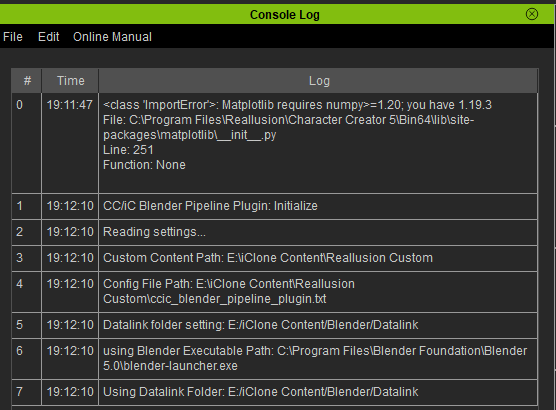
- Are there any error messages or logs displayed in the Console Log when the issue occurs?
- After the “Detect facial landmarks failed” message appears, could you please take a screenshot of the contents of the following folder?
%TEMP%\CharacterCreator5Temp\HeadShotTemp
Your assistance is greatly appreciated. Thank you!
CC5.11.1823.1 as per CC5 help and about menu
Headshot v3.1 (3.1.0623.1) as per Reallusion Hub
As per Support Ticket ID : 270440 “We have identified that this issue occurs when the Windows username contains non-English characters. We will release a patch for this in a few days. In the meantime, the current workaround is to create a new Windows user account with an English name.”
As per the support ticket I created a windows account on my computer, which does work around the issue. It is just very inconvenient to log onto the temporary created account each time I want to use headshot 3.

Thank you for the information you provided.
I have one question regarding the username. It appears that the Windows username is “USER-PC” . Is that the temporary created account you are using, or it is the account that fail to detect landmarks?
I’m a bit confused because the issue should only occur when the Windows username contains non-English characters. If you’re not comfortable sharing your actual Windows username, that’s completely fine. We just wanted to confirm this detail to help us better understand the issue.
Also, I noticed that an “Import Error” is shown in the console log. Based on the information available, I suspect the issue may be related to the Python environment or installed libraries.
Could you please help us gather the following information so we can investigate further?
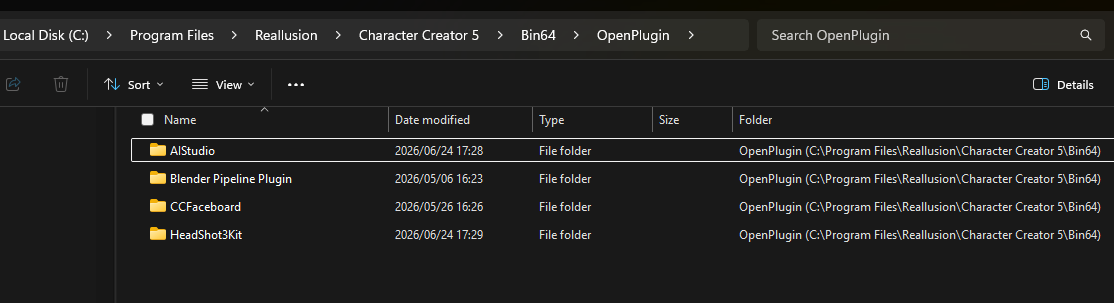
- Take a screenshot of the OpenPlugin folder in your Character Creator 5 installation directory. The default location is:
C:\Program Files\Reallusion\Character Creator 5\Bin64\OpenPlugin - Open Command Prompt in the
Character Creator 5\Bin64folder, then run the following commands:
py --list
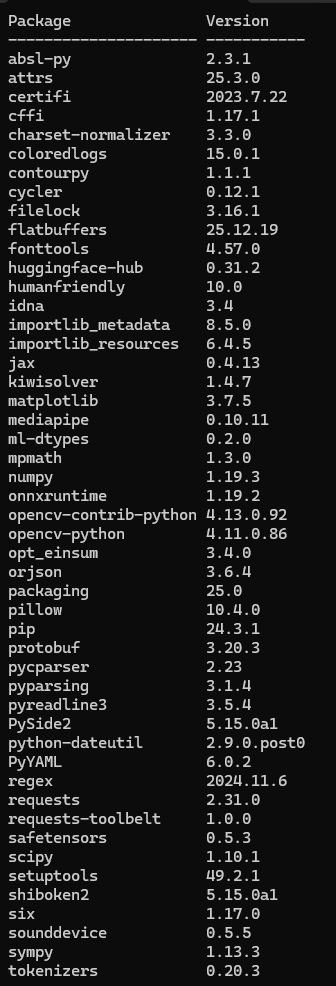
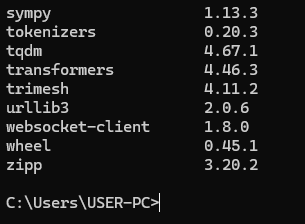
pip list
Please either take a screenshot of the output or copy and paste the results into your reply.
Your assistance is greatly appreciated. Thank you very much!
The username is eswardt@hotmail.com
The USER-PC is just a user directory name created by windows.

That first command did not work. See screenshot.
Google search gave me some pointers and re-installed python. I will have to reboot my machine and continue this conversation when I am back
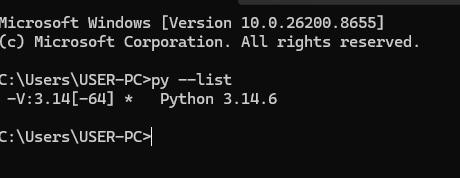
Perfect, the screenshot shows that numpy version is 1.19.3 in your environment, so I would recommand to update the version to 1.20 or latest version.
Please follow the steps below to update NumPy,
open cmd then input the following command:
( note: replace [ CC5 Path ] to the actual path of CC5 installed )
- cd [ CC5 Path ]\Bin64\
- CharacterCreatorpy .\scripts\Python\get-pip.py
- CharacterCreatorpy -m pip install --upgrade “numpy==1.20.0”
Once the update is complete, please launch Character Creator 5 again and check whether the issue has been resolved.
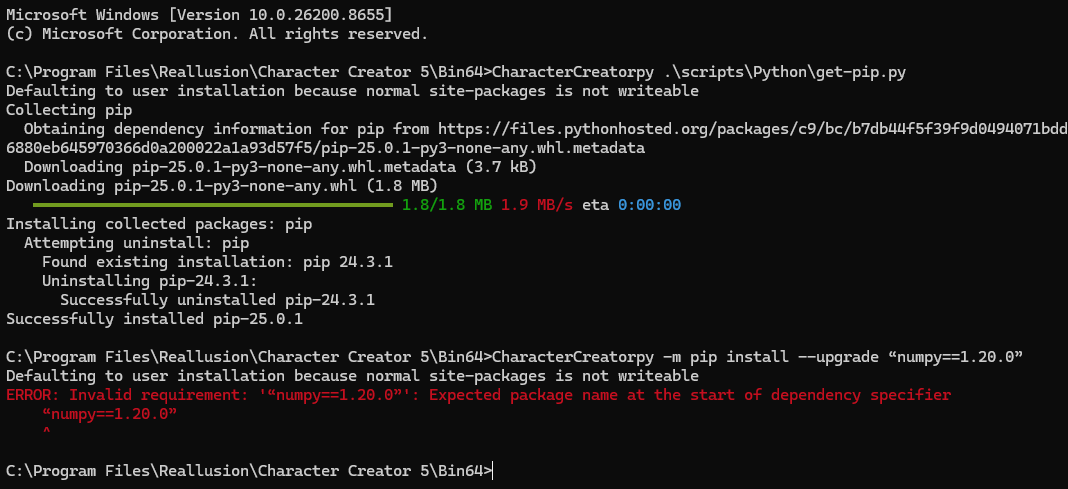

- cd [ CC5 Path ]\Bin64\
- CharacterCreatorpy .\scripts\Python\get-pip.py
- CharacterCreatorpy -m pip install --upgrade numpy==1.21.6
Please try this again, sorry for your inconvenient. After opening CC5, check if the error import message still exist.
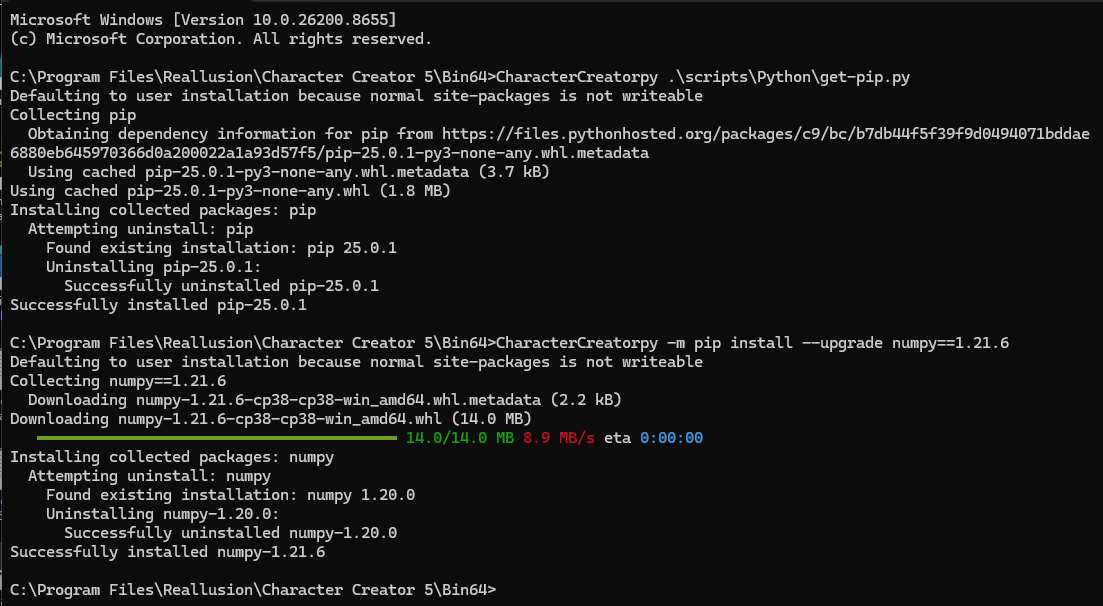


Thanks for fixing this issue. I will close the support tickit.
1 Like