When comparing CC5 and CC4 with regard to the Transformer, the website notes that CC5 supports HD morphs, but CC4 doesn’t. However, the online manual for CC5 doesn’t mention this (or am I mistaken?), or rather, the workflow described there is the same as for CC4 if you wanted to import HD morphs/HD characters into CC4 (using a complicated method). No matter what I’ve tried so far, HD morphs aren’t imported directly and automatically via the Transformer in CC5. Can anyone explain to me what the new features/changes are in the CC5 Transformer compared to CC4, or how I can use them?
I have tried it, DAZ G8 and G8.1 can import high-subdivision models into CC5. You just need to export the fbx and make sure the subdivision level is level 1 (level 2 is also OK) and then export the obj. You can select your obj in the first row in Transformer. G8 can import it without any problems, but G9 does not support it. I am still waiting for the official tutorial.
1 Like
Thanks a lot! I only tried it with G3 and G9. Best regards!
I have tried it now with a G8 character. It looks like Transformer imported the (high poly) mesh properly. But the character comes in without any textures although I‘ve enabled „Bake textures“. When trying to add the textures manually the UVs are not correct.
Any luck with the G9 characters yet? I haven’t tried as I’m at work, but I’m curious if others have had success
I tested it yesterday and CC5.01 supports importing G9 models with subdivisions
1 Like
What export settings do you need from Daz Studio? Any screenshots of workflow would be appreciated.
HD SubD Level 2 mesh details require exporting an SubD Level 2 obj file for Transformer.
You can follow this workflow video to Transfer DAZ HD Character.
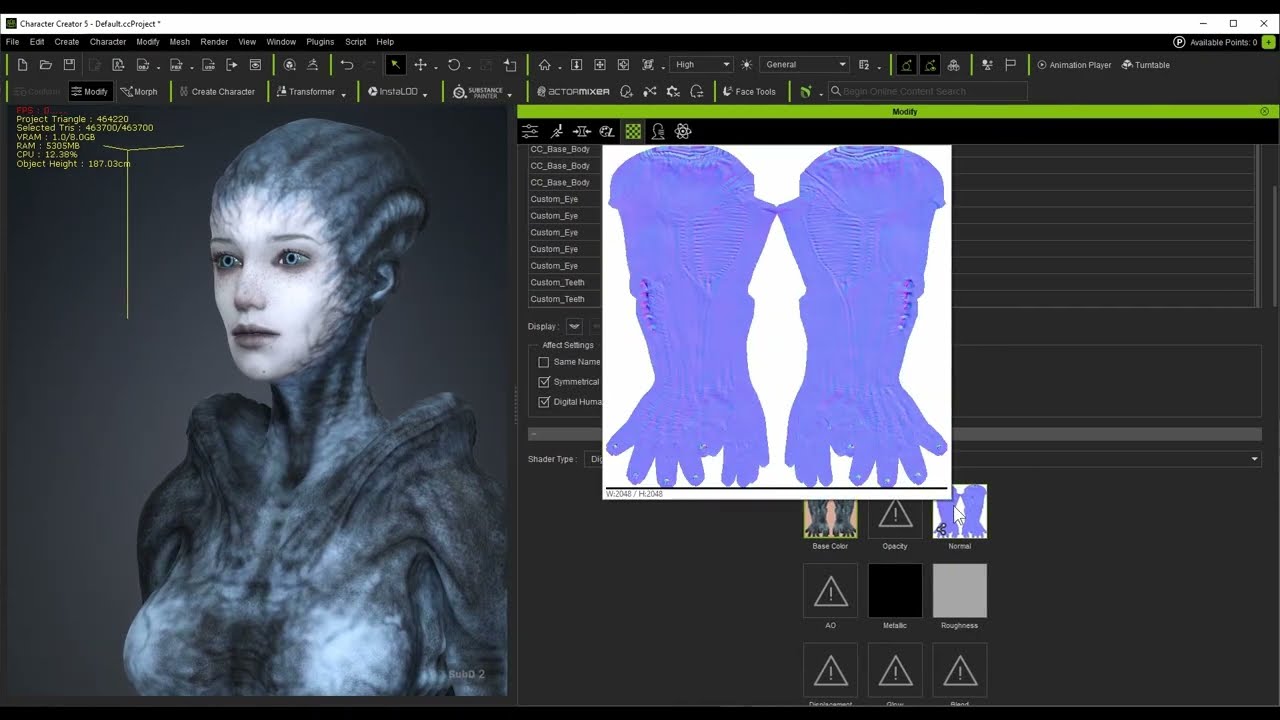
2 Likes
Thank you so much for that video tutorial - now it all makes perfect sense.
Sincerely appreciated.
Andrew
Am I missing something?
I know the old technique of getting HD morph details from DAZ (exporting multiple OBJs, deleting the mouth/teeth, etc) but that was with normal/height maps.
Are you guys saying there’s a way to get the actual details through on the mesh, or are you guys talking about this same old technique?
I don’t see any documentation about the transformer tool being updated (the documentation is literally a copy and paste of CC3’s documentation), but this would be big news if they actually did
So, looking at that tutorial above (which is initially ignored, assuming it was the tutorial for the old process since it used the same character), it seems that they actually are updating transformer (awesome)
My problem is: No matter what I try (and with whom: G3, G8, G9), I can’t get normal maps via Transformer in CC5. To get a normal map for the HD details, I only see the well-known method, as shown in the manual for CC4.
Maybe I’m misunderstanding something, but what’s the point of an HD SubD Level 2 mesh without a corresponding high-detail normal map? The differences between the SubD levels remain “hidden beneath the textures.”
In the video tutorial, all the textures seem to be present because the author is working with a texture profile. Does anyone know how to create one?
2 Likes
Oddly enough, it seems to have messed up the “Generate Profile”
For some reason, it no longer has all of the UVs for the model listed in the .ini file like it used to, it only shows the UVs of the eyelashes and eyemoisture showing up now
An easy fix would be to bring the character over with the transformer and manually add the textures with the UV tool from skingen, but it feels like something got overlooked here
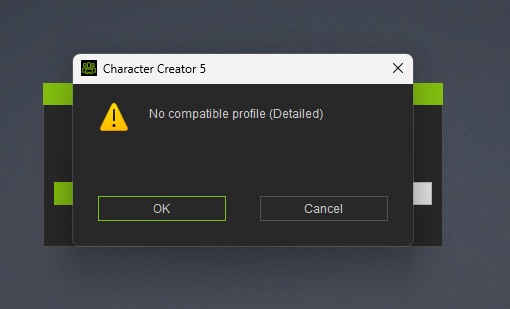
Yes, everytime, every Genesis figure!!
Haven’t tried with anything else, but for G9:
Make sure everything on the body is set to SubD 2 for the OBJ export: eyes, mouth, tears, eyelashes as well as the body itself, otherwise it throws this error.
Basically the main body mesh and everything with a name that starts with “Genesis” must be SubD 2. It doesn’t seem to need it for the eye brows, hair or clothes.
Make sure the body, eyes, and teeth meshes are set to SubD Level 2 (or all Level 1). The Transformer tool will convert the DAZ SubD Level 2 mesh shape to CC SubD Level 2. The process for baking textures (including normal maps) is the same. You can edit your own texture profile ini files by following the manual.
Character Creator 5 Online Manual - Using INI for Loading All Body Textures
1 Like
So, for me, it remains the same: I see absolutely no improvement over the workflow in CC4 (with xnormal, etc.). I followed the tutorials strictly, and yes, in CC5 you get a character with different subdivision levels, but visually, it’s nowhere near as good as the HD original from Daz. Perhaps at some point there will actually be an official tutorial or an entry in the manual. It’s sad that there’s still no mention of this, even though the comparison between CC4 and CC5 does mention the “HD Morphs.”
What I do is inport the character twice from Daz.
The first export is the regular export setup.
Then I browse under the surfaces I want and daz to find where the normal maps are, normally only have to find one of the diffuse map locations and all the maps are there.
I then change the diffuse map to the appropriate normal map…face, torso, legs, and arms are the main ones I change to normal maps.
I then export the character again…now all the diffuse maps are the normal maps.
Once in cc, I use transformer to bring in the normal map character. I then save all the maps to a folder with “save all textures”.
I now bring in my character with the regular diffuse maps thru transformer.
Once the character is imported …I drag the saved normal maps into the normal slot of the character texture in slot in the materials.
for some reason I find I have to drag the normal map in under displacement and choose auto assign to to bump/normal.
I then usually delete the displacement map.
So basically import character thru transformer twice.
Once with regular diffused maps, and once with the normal maps occupying the diffuse map channels
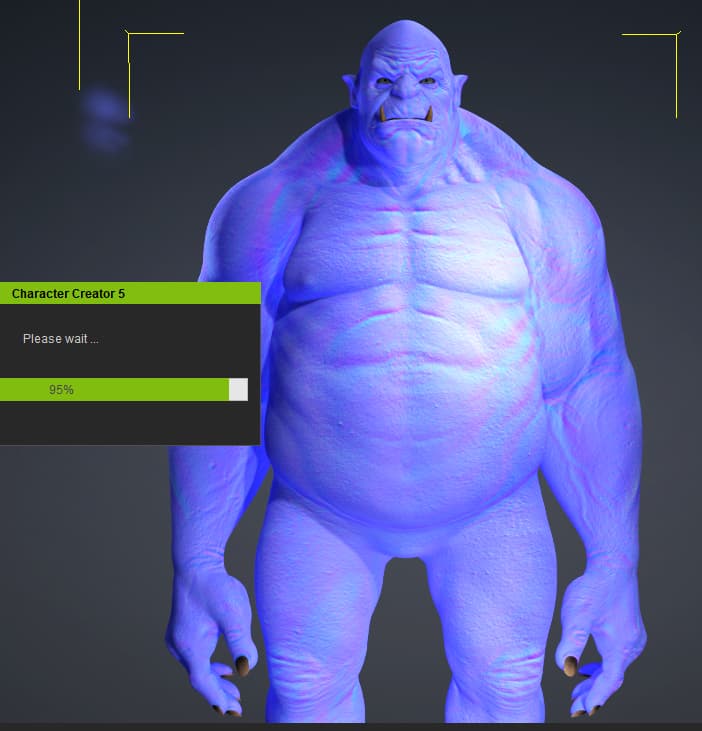
Added picture of normapped character in CC from daz thru transformer
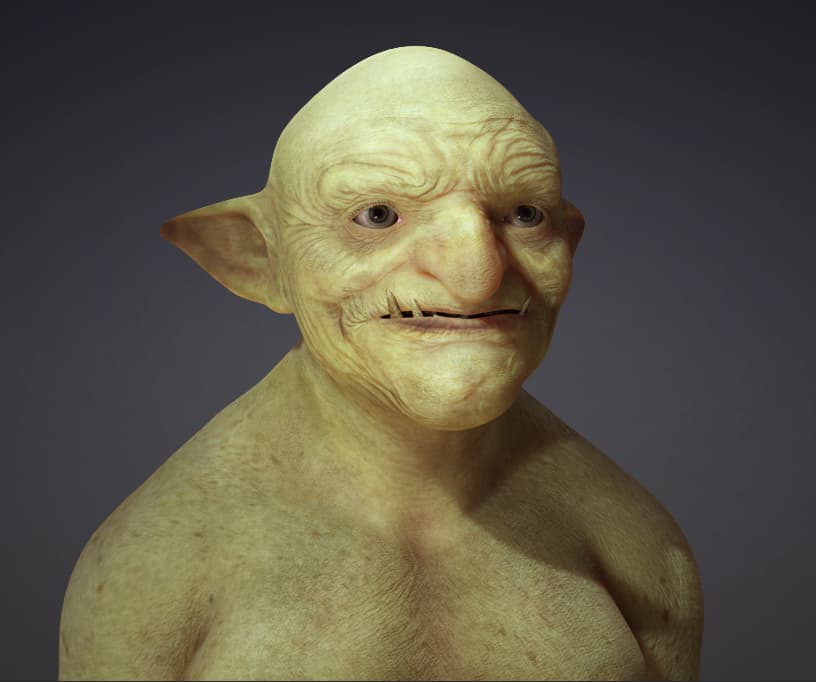
and lastly , a daz character with normal maps, sub Div1.
1 Like
Well, that is a smart move! Thank you! No more problems with wrong UVs! Unfortunately Transformer does not work with Genesis 9; not a single texture comes along with this is.