Assume you bought some motions from content store, and you want to export only animations w/o mesh from CC5 to UE5 using correct character skeleton (i.e. not directly from ActorCore w wrong actor mesh). You might think it is an easy task since there are “Motion” and “Currect Animation” option in the export FBX panel. But it is not. Here is the correct way to do it:
-
Right click the motion, use “Find File” and copy the folder path.
-
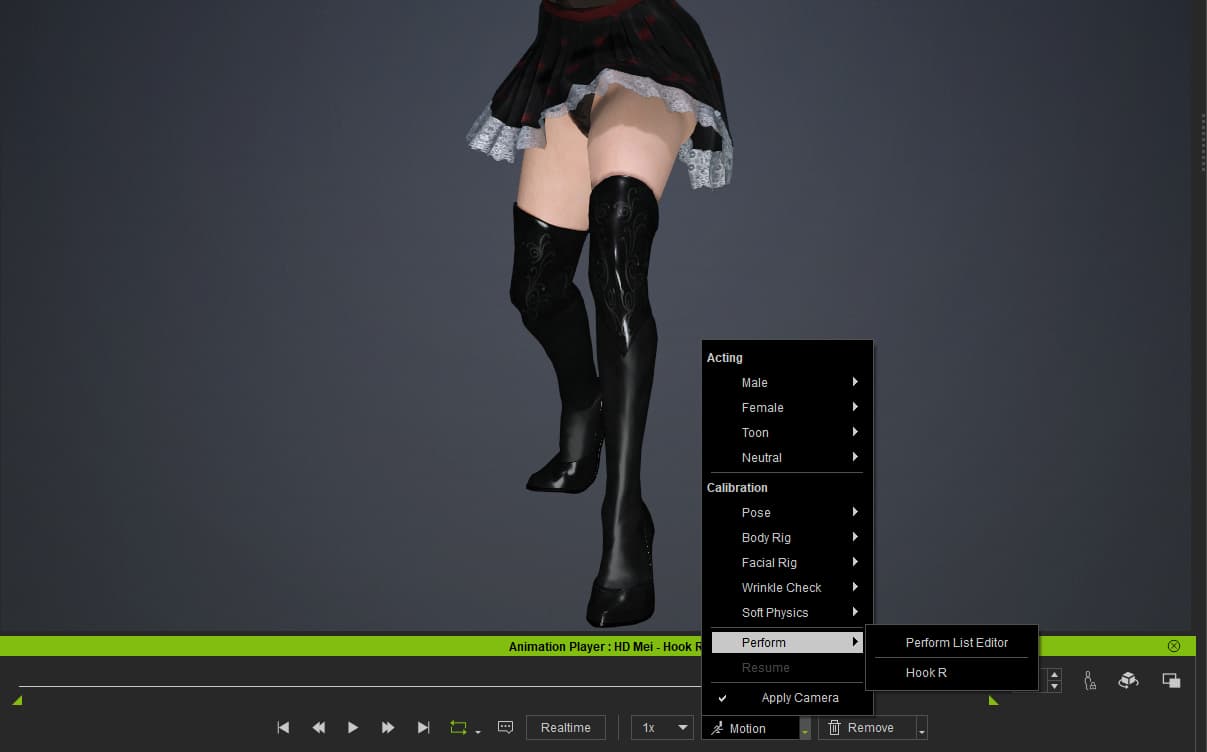
Open the “Perform List Edior” in the timeline window at the bottom of the CC5 main screen.
-
Remove all the Motions, such as Idle, Spinning and Walk, in the Perform List.
-
Add the motion you want to export into the Perform List. You can select multiple files at once.
-
In the FBX export panel, choose “Motion” and “Custom” and remove all the unnecessary motions in the Custom window. If you can’t find your motion in the “Custom” window, click the “Load Perform” button below the Custom window.
-
Also enable “Save one motion per file” in the export option. Bcz UE5 uses seperated Animation Sequence instead of a single large animation library like Godot.
-
Click the export button.


I spent two hours on this simple task. Hope it could save people’s time who are trying to do the same thing.