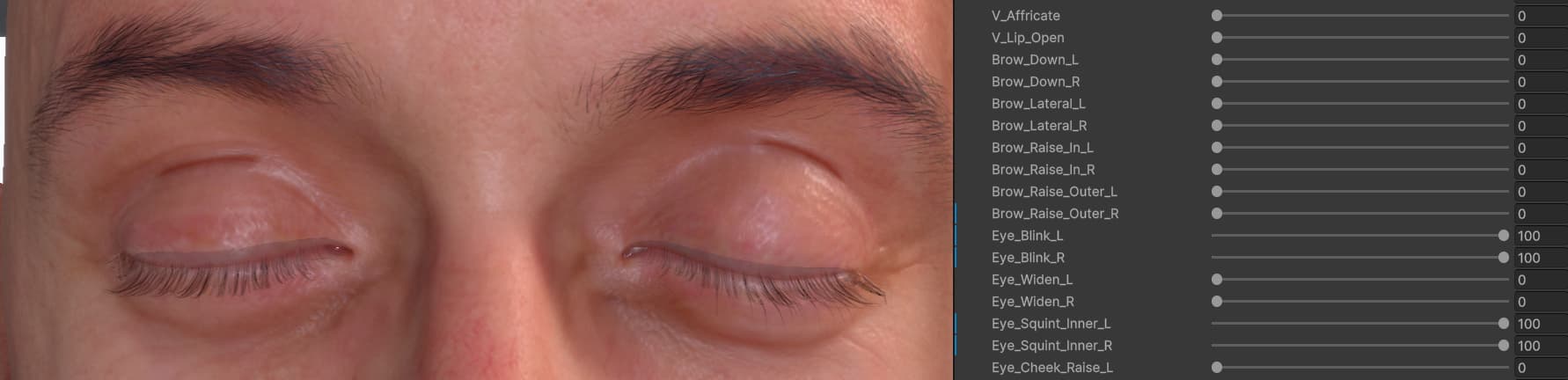
I’m hoping someone might be able to point me in the right direction regarding an issue I’ve been investigating with CC5 characters in Unity.
I’m using Unity 2023.1.16f1 (HDRP), Character Creator 5, and CC/iC Unity Tools 2.2.6. The characters are exported using the CC5 HD Facial Profile.
The problem is that when certain eyelid blendshape combinations are active (for example Eye_Blink + Eye_Widen or Eye_Blink + C_Blink), the eyelids develop dark shading artifacts. The issue only appears while the eyelids are deforming and does not occur inside Character Creator.
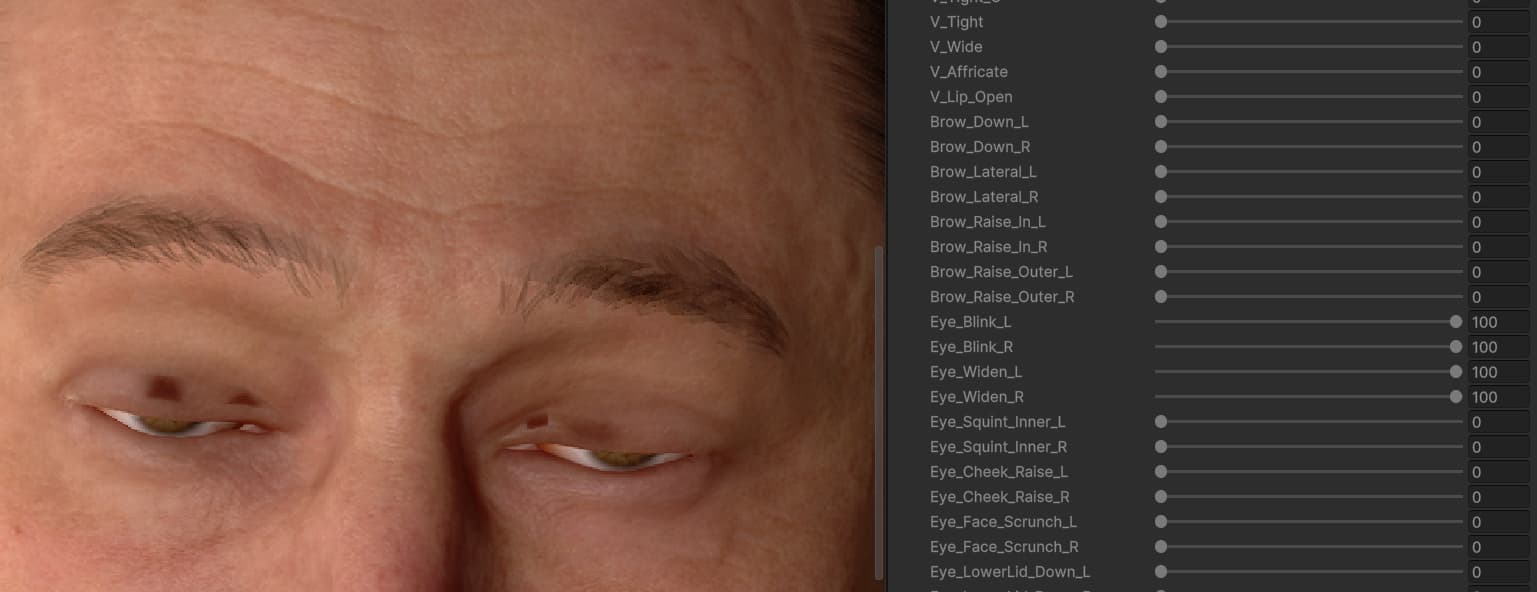
Initially I was getting permanently dark eyelids when using the body mesh generated by the Auto Setup. Since Unity doesn’t allow recalculating normals on that extracted mesh, I switched to using the original body mesh from the imported FBX and enabled Calculate Normals. That significantly improved the overall shading and fixed the permanently dark eyelids, but I’m still seeing these artifacts whenever certain eyelid blendshapes are combined.
I’ve tested this on multiple characters, so it doesn’t appear to be character-specific. I’ve also verified that the issue is independent of the material or shader by assigning a simple Lit material with no textures, and changing the lighting direction doesn’t affect the result. Disabling the C_Blink corrective reduces some of the artifacts, but similar issues still occur with other eyelid-related blendshape combinations.
Has anyone come across something similar, or is there a recommended workflow for preserving correct eyelid shading during blendshape deformation in Unity? Any suggestions would be greatly appreciated.
Steps to reproduce
The issue can also be reproduced using the default HD Aaron character without any modifications.
- Export HD Aaron from Character Creator 5 using the CC5 HD Facial Profile.
- Import the character into Unity using CC/iC Unity Tools 2.2.6.
- Use the original Body mesh from the imported FBX instead of the extracted body mesh generated by the Auto Setup.
- Set the Body mesh import settings to Calculate Normals and Calculate Blend Shape Normals.
- Open the Skinned Mesh Renderer and set the following blendshape values:
- Eye_Blink
- Eye_Squint_Inner
- Ensure the corresponding corrective blendshape is also active.