After the update today to CC 5.05, it opens then automatically closes.
This happens when I open from the hub and my desktop shortcut.
1 Like
Same. It’s happening to me also, and I don’t really want to uninstall/install if there is another fix for it.
1 Like
Mine opens normally. Do you get at least the splash screen or not even that?
I get the splash screen and plugins loading till the last thing I see is Omniverse - have tried uninstalling and reinstalling and still having the same issue. Had a similar similar when CC5 was released that they did a patch a day or two later - so presuming it’ll be something similar.

Hi,
Please help check your installation files.
Navigate to the installation directory and check the Date Modified column to see if there are any files with different dates, especially older ones.
For example, the default path is:
C:\Program Files\Reallusion\Character Creator 5\Bin64\Plugin
If any outdated or mismatched files are found, please move them to another location for backup or remove them, then restart the application.
We suspect the issue may be caused by incompatible DLL files creating a conflict.
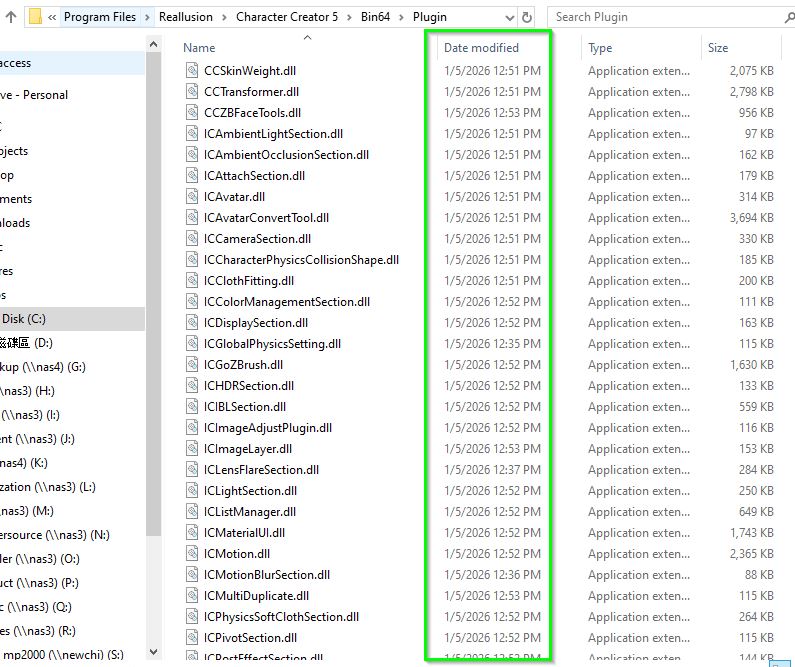
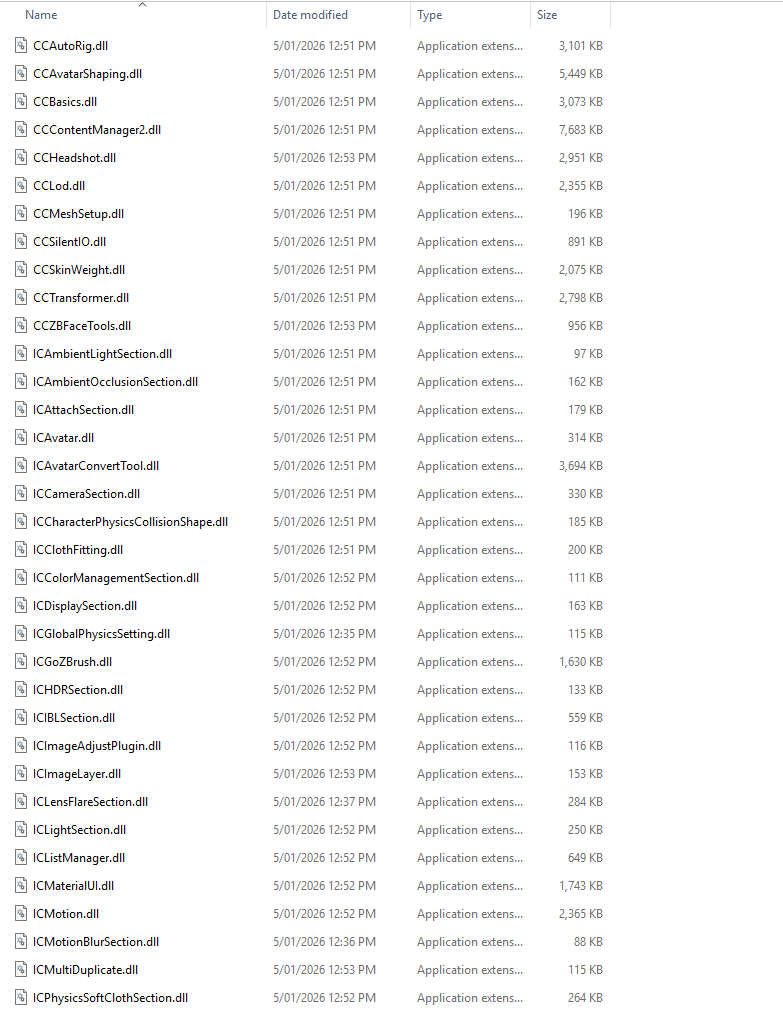
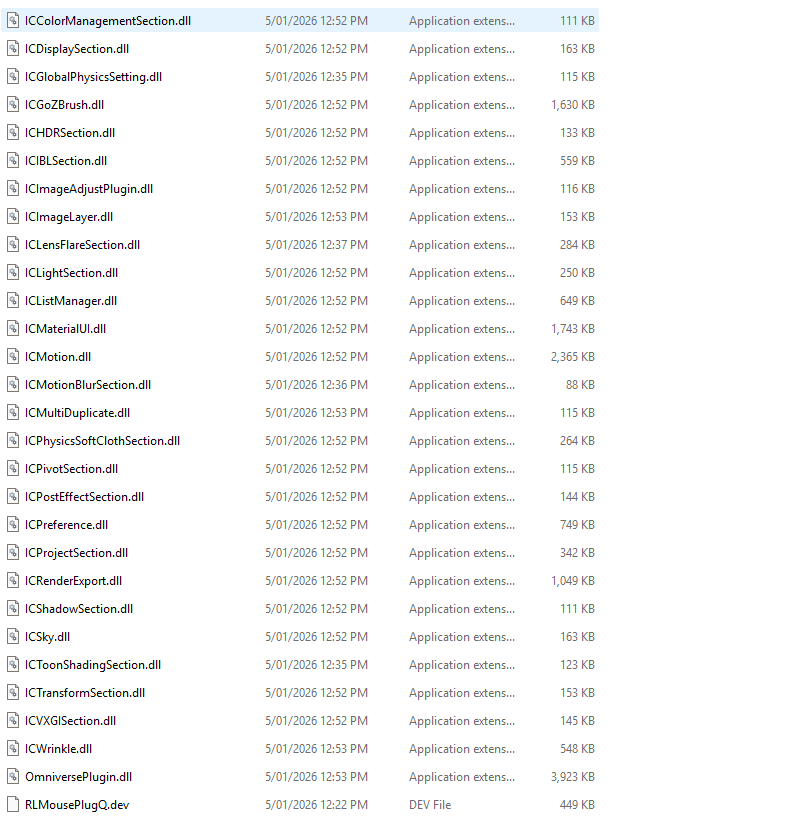
Mine is crashing on startup but I do have different dates.
I will uninstall and reinstall soon.
Crash even after reinstalling.
Do any of you maybe have dual graphics laptops? If you do, make sure that CC is still set set to run on the dedicated graphics chip.
No I’m on a desktop PC. I just did a clean install on another drive running Windows 11 and it launched okay, so I’ll do a full uninstall and reinstall on this OS drive as I need to be back up and running with Character Creator in the morning.
relabeled the Reallusion folder to _old and did a fresh install - CC5 launched to UI loaded default project and then crashed. So until bug is fixed I guess I’m going to be on my other copy of Windows
Hi,
Please help me collect this file, follow these steps:
-
Run CC ( still failed to launch)
-
In Windows Search, type %appdata%

-
Go to the following path:
C:\Users\[Username]\AppData\Roaming\iClone\CrashDump -
Check whether a .dmp file was generated at the time of the crash.
-
Upload the .dmp file to Google Drive and share it with me.
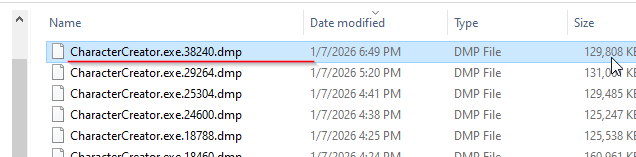
We will ask the R&D team to review the dump file for figuring out the cause.
Hi,
If you’re also able to provide the dump (.dmp) file, we would really appreciate it. 
I am unable to find the dump location mentioned.
Also no crashdump file created here
C:\Users\user\AppData\Local\iClone
I am using Windows 11 pro and default locations for installations.
Kindly suggest all possible location of CrashDump
Windows has also it’s own crash logs. You can check the Windows Reliability Monitor for the logs
If you double click on an entry, it opens a detail description. Sometimes this is helpful because you can see if the app crashed by itself or if the crash happened in an external DLL like ntdll

I don’t have access to the Files.
But you can see the app is crashing
Source
Character Creator 5
Summary
Stopped working
Date
07-01-2026 13:24
Status
Report sent
Description
Faulting Application Path: C:\Program Files\Reallusion\Character Creator 5\Bin64\CharacterCreator.exe
Problem signature
Problem Event Name: APPCRASH
Application Name: CharacterCreator.exe
Application Version: 5.5.1305.1
Application Timestamp: 00000000
Fault Module Name: Qt5Gui.dll
Fault Module Version: 5.15.2.0
Fault Module Timestamp: 622b356a
Exception Code: c0000005
Exception Offset: 000000000038330a
OS Version: 10.0.26200.2.0.0.256.48
Locale ID: 16393
Additional Information 1: e00f
Additional Information 2: e00ff01fbc49fa777cd584c84b372aa0
Additional Information 3: 489d
Additional Information 4: 489d82022f09516235961134cc348a5b
Extra information about the problem
Bucket ID: 2854577f2ee94389a40a0924e6555258 (1443976684613489240)
Now we know that it crashed in the GUI dll of the application framework.
1 Like
To rule out a problem with your Windows installation try the following:
open cmd.exe as administrator (it’s best to enter cmd in the Windows search and then right-click the search result to start as administrator), type DISM.exe /Online /Cleanup-image /Restorehealth and press Enter.
Windows will now get an up-to-date restore image from the Microsoft servers.
If this is done type sfc /scannow and press Enter.
Windows will now check its system files and tries to repair them by using the new image.
See here for details:
1 Like
did the repair.
now cc5 working.

As to iClone and CC crash dumps: I remember from beta testing a long time ago that a special setting was needed to force those being created. So it’s not automatic at the moment. I don’t get crash dumps either after a crash.
1 Like